Members & Roles
This page is for workspace admins who build and maintain their team. You’ll learn how to view your members, invite teammates, choose the right role, and update or remove someone.
Managing members requires the Workspace admin role. If you don’t see the Workspace admin tabs, you don’t currently have admin access for this workspace.
Viewing your team
Your team lives on the Members tab of the Workspace admin area.
- Open the Workspace admin area.
- Select the Members tab.
The Members table lists everyone in the workspace with their:
- Name and E-mail
- Role — Workspace admin or Member
- Status — for example, Active
- Date joined and Last activity
Near the top you’ll also see your seat count (for example, “X out of Y seats available”), a New member invite button, and search and filter controls to find people quickly.
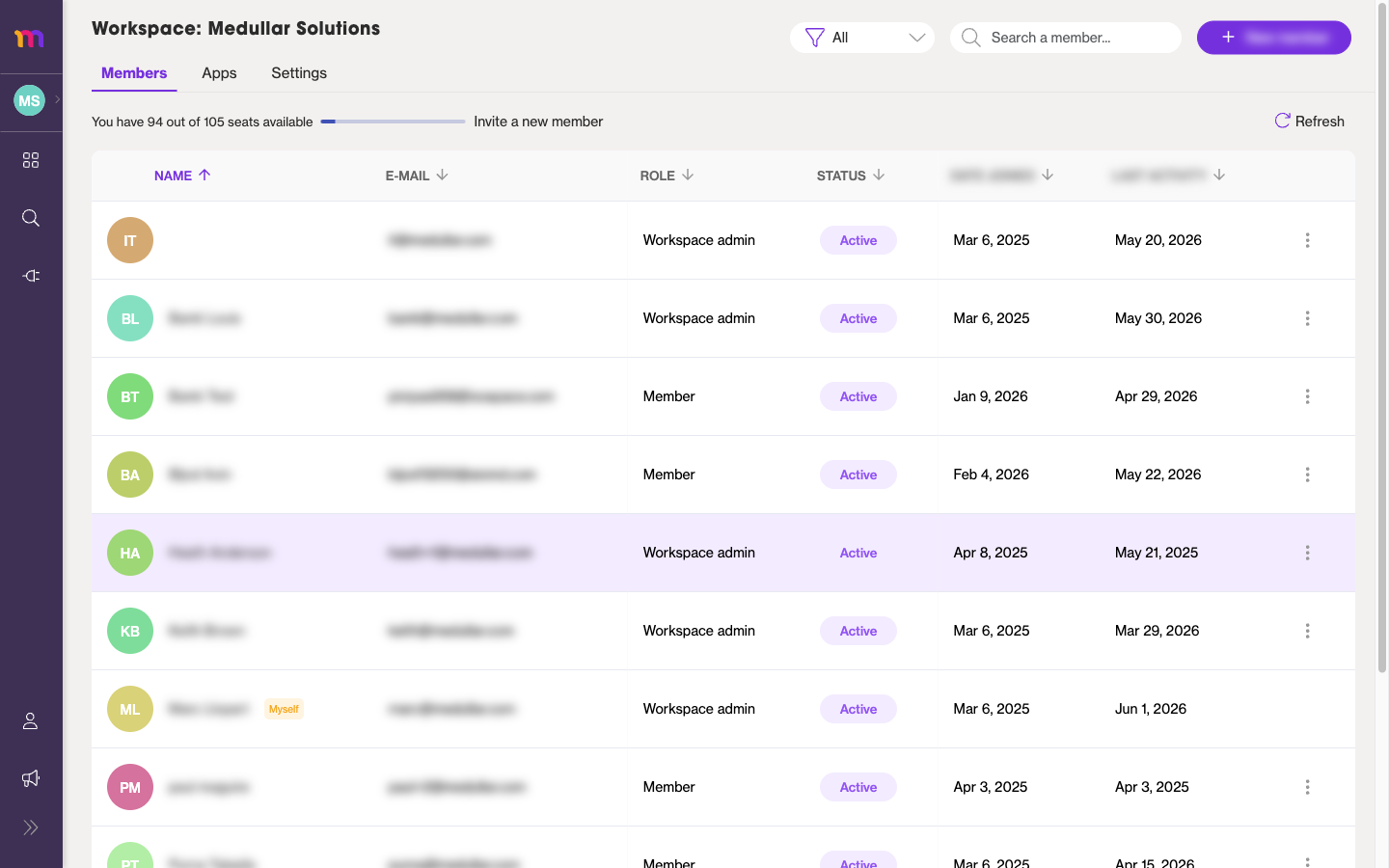 Names and emails are blurred here for privacy; your own list shows real teammates.
Inviting a member
Inviting someone sends them access to this workspace.
- On the Members tab, select New member.
- Enter the teammate’s email address. You can invite a single person, or paste several addresses to invite people in bulk.
- Choose the role they should have (see Roles explained below).
- Send the invite.
Each invited member appears in the Members table, and their status updates as they accept and become active.
Inviting a member consumes one seat. Make sure you have an available seat before inviting. See Subscription, Seats & Invoices for details on seats and adding more.
Roles explained
A workspace has two roles. Pick the one that matches how much control the person needs.
- Workspace admin — full control of the team. Admins can manage members, connectors, settings, seats, and billing, and they can reach all of the Workspace admin tabs.
- Member — a regular teammate who can use the workspace, but can’t manage members, settings, or billing.
When in doubt, start someone as a Member and promote them to Workspace admin later if they need to administer the team.
Editing or removing a member
You can change a person’s role or remove them from the workspace at any time from the Members tab.
- Find the teammate in the Members table.
- To change their access, update their Role between Workspace admin and Member.
- To take someone off the team, remove them from the workspace.
Removing a member revokes their access to this workspace. If they belong to other workspaces, those are unaffected — see Workspaces & Switching to understand how a person can be part of several workspaces at once.
How invites use seats
Your plan includes a fixed number of seats, and the Members tab shows how many are available. Because every invite consumes a seat, your team can only be as large as your seat count allows.
- If you have free seats, you can invite new members right away.
- If you’re out of seats, free one up by removing a member, or add more seats to your plan.
To review or change your seat count, head to Subscription, Seats & Invoices.