A Tour of the Interface
Now that you are signed in, let’s get you oriented. This page walks through the layout you’ll see on every screen and explains two words you’ll meet everywhere in Medullar: Workspace and Space.
The main navigation
The app shell has a main navigation that stays with you as you move around. From here you can reach everything:
- The workspace switcher — a round avatar showing your workspace initials.
- Spaces — your list of collaborative knowledge containers.
- Search — run one search across all your connected apps.
- Connectors (My Apps) — connect and manage the apps you search.
On the right side you’ll find your user menu (your avatar), along with icons for getting help and sending feedback.
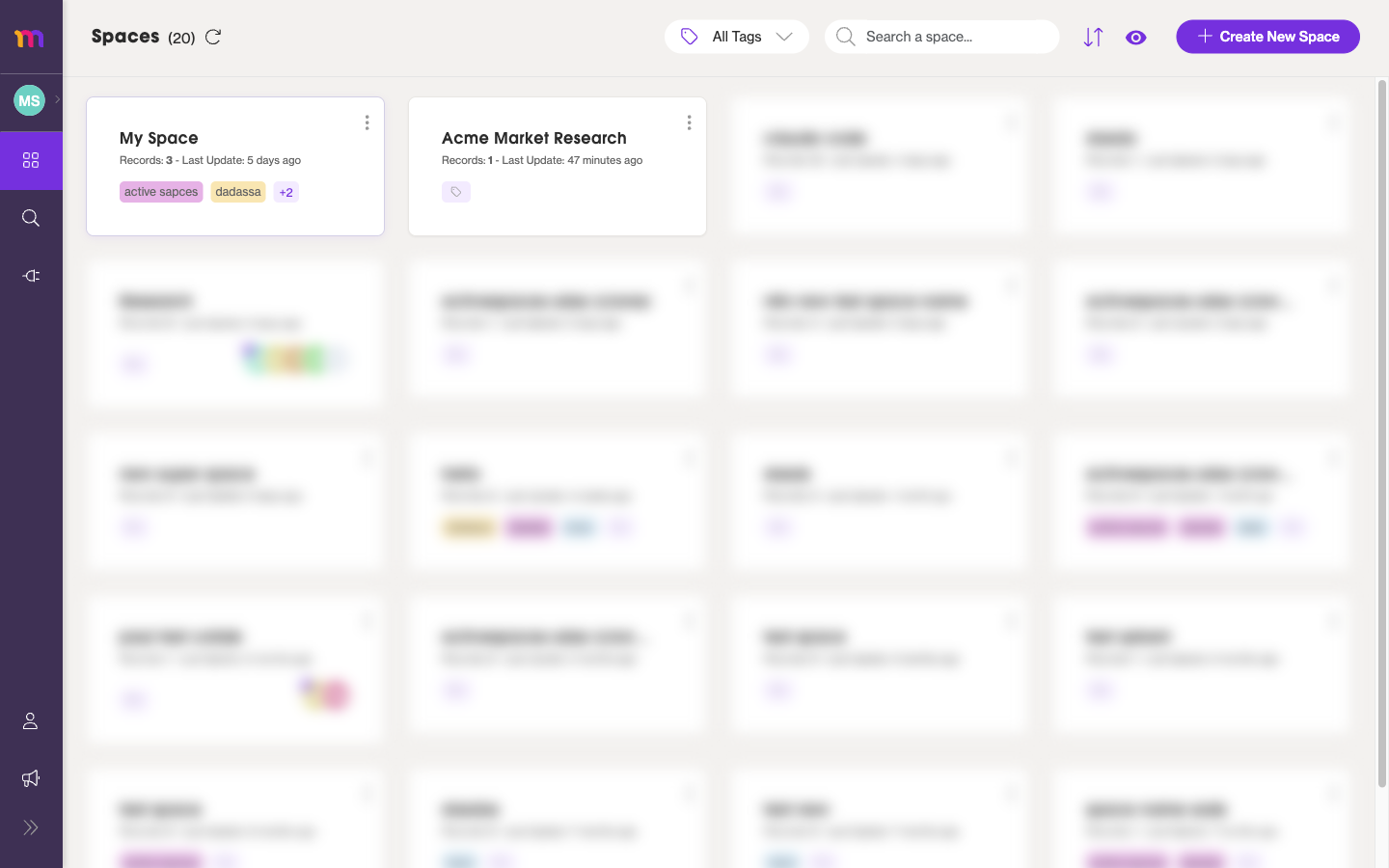 After you sign in to an active workspace, you land on Spaces.
Workspace vs Space: what’s the difference?
These two words sound similar, but they do very different jobs. Getting them straight now will make the rest of Medullar much easier to follow.
- A Workspace is the team and billing container. It holds your members, their roles, the connectors available to everyone, the workspace settings, the seats, and the plan. Admins manage all of this. You can belong to several workspaces and switch between them.
- A Space is a knowledge and chat container that lives inside a workspace. It’s where you chat with the Medullar AI over your connected data, keep records, pin key answers, and follow the Discovery Path behind each response. “My Space” is your personal default Space; other Spaces can be shared with teammates.
In short: a Workspace is who you work with and how it’s billed; a Space is what you’re working on inside it. One workspace can hold many Spaces.
Want to go deeper on each? See Spaces overview and Workspaces and switching.
Switching workspaces
If you belong to more than one workspace, you can move between them at any time from the workspace switcher in the main navigation.
- Click the workspace switcher avatar in the main navigation.
- The switcher shows your Current workspace, any Other workspaces you belong to, and a New workspace option.
- Select another workspace to switch to it, or choose New workspace to create one.
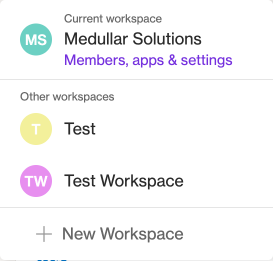
Each workspace keeps its own members, connectors, Spaces, and billing, so switching changes everything you see on screen.
Your user menu
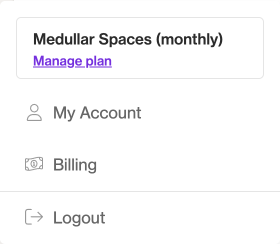
Open the user menu by clicking your avatar on the right of the main navigation. It shows your current plan and gives you:
- My Account — your Profile, Devices, and API Keys.
- Billing — your plan, seats, and invoices.
- Logout — sign out of Medullar.
Getting help and giving feedback
Look for the help and feedback icons next to your user menu on the right of the main navigation. Use them whenever you have a question or want to tell us how Medullar is working for you — your feedback helps shape the product.