Running a Search
Medullar’s Universal Search lets you ask one question and search across all your connected apps and public sources at once, instead of jumping between tools. This page walks you through running your first search and reading what comes back.
Opening Search
To get to the search home, sign in to Medullar and select the Search icon in the main navigation. You’ll land on the Medullar logo above a single search bar with the prompt “Search once. Find everything.”
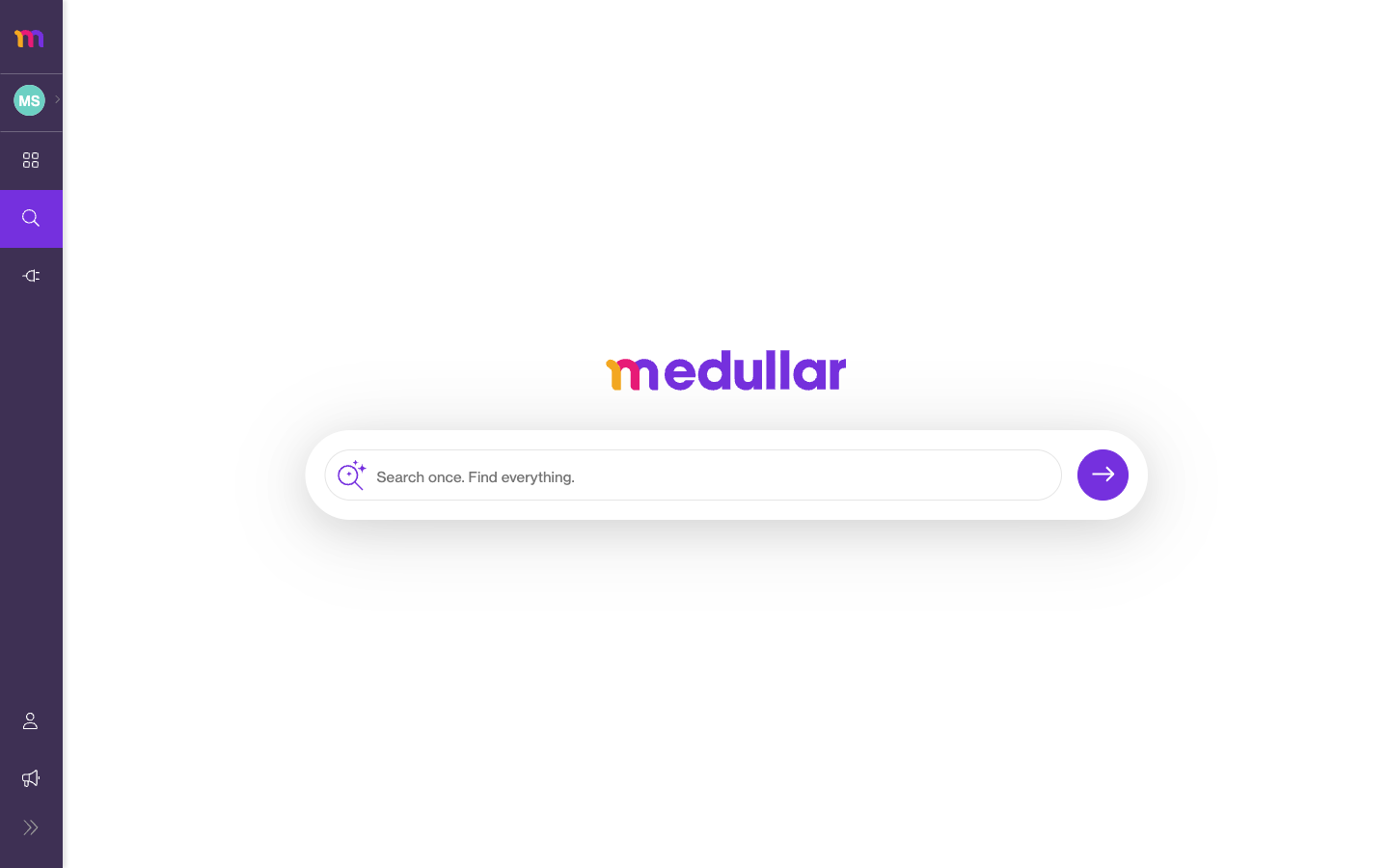
Entering a query
- Click the search bar.
- Type your question or keywords in plain language, for example “latest Acme Market Research notes”.
- Press Enter to run the search.
Keep queries natural, the same way you’d describe what you’re looking for to a colleague. There’s no special syntax to learn.
How results stream in
Results don’t all appear at once. Medullar queries every connected source in parallel and streams matches back as they arrive, so you’ll see loading placeholders first and then cards filling in.
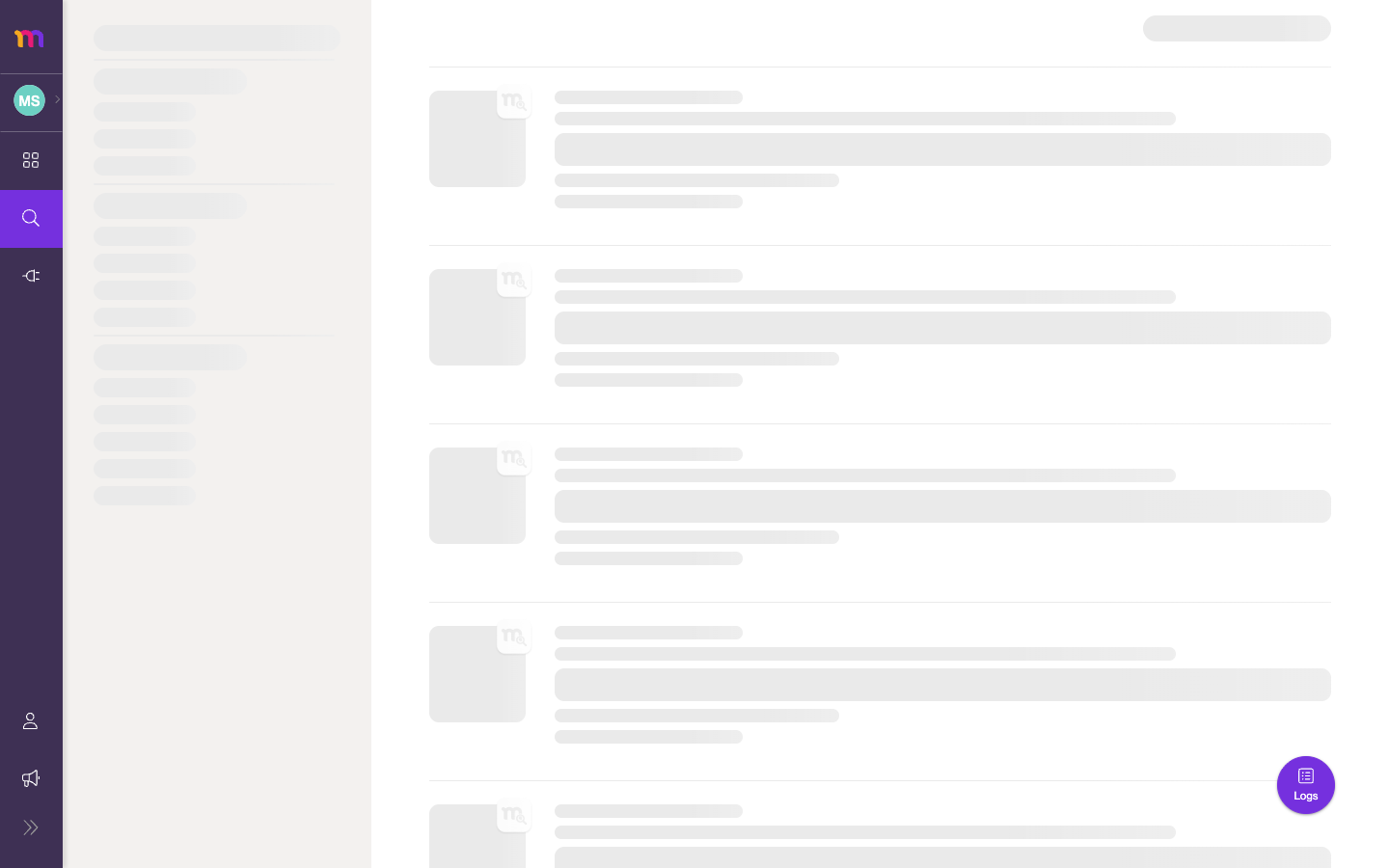 Results stream in as each source responds.
You can start scanning the early results while the rest are still loading.
Reading the results
Results arrive as cards grouped by source. Each card shows:
- The connector’s logo, so you can see at a glance where the result came from.
- The title of the item.
- A short summary.
- A result-type label (for example, the kind of item it is).
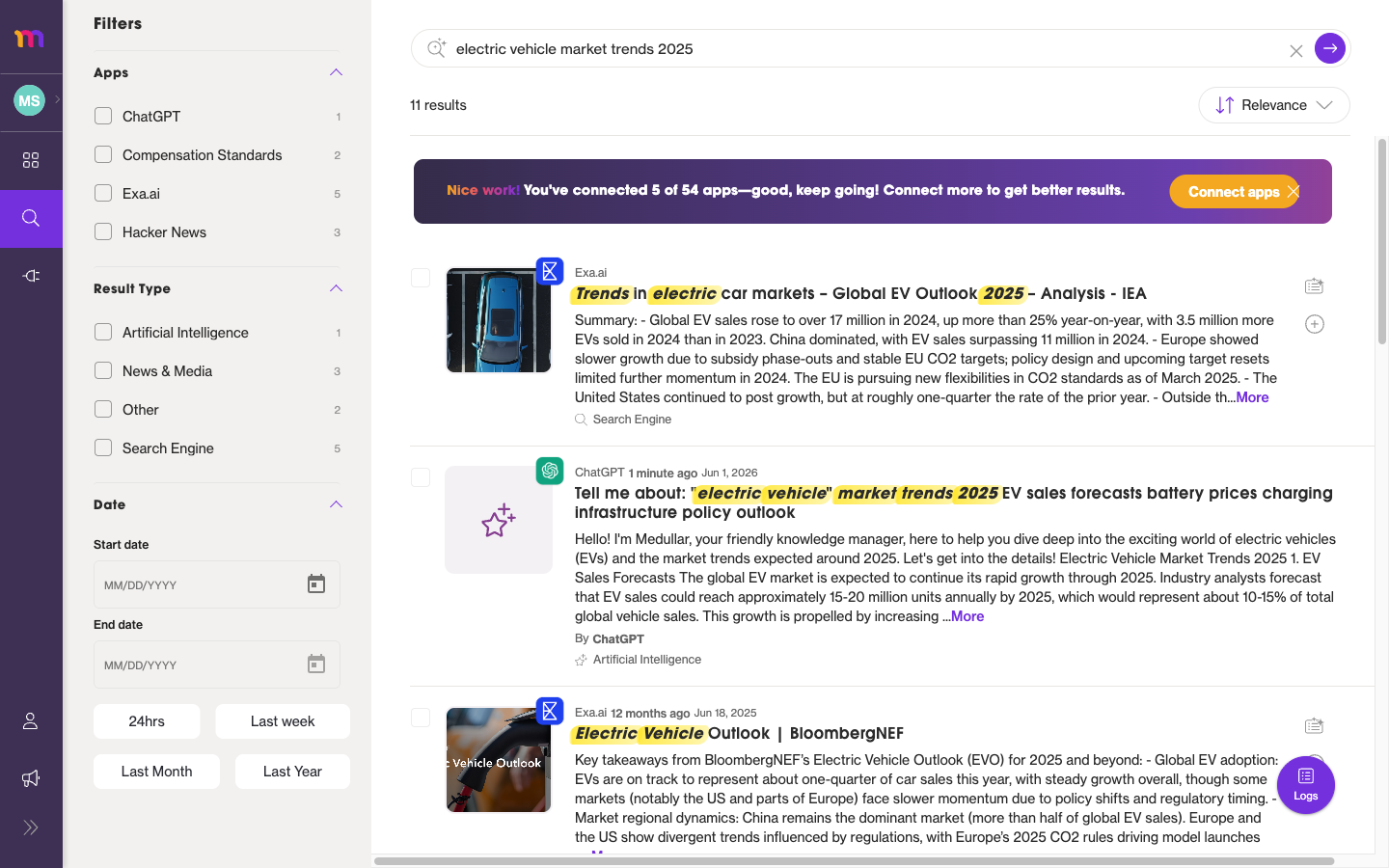
From the results page you can narrow and reuse what you find:
- Use the filters on the left to refine by Apps, Result Type, and Date, and change the sort order. See Filtering and Sorting Results for the full breakdown.
- Hover a result to reveal a checkbox, then add selected results to a Space or export them. See Saving and Exporting Results.
A banner on the results page suggests connecting more apps for better results. The more connectors you add, the more of your world a single search can cover.
When you have no apps connected yet
If you haven’t connected any apps, Medullar can still search public sources, but it can’t yet reach your own documents, messages, and files. That’s why you’ll see the connect-more-apps banner inviting you to add connectors.
To get richer, more relevant results:
- Head to My Apps from the main navigation.
- Connect the tools you use day to day, such as your email, drive, or chat apps.
- Run your search again to include those sources.
See Connecting Your Apps for step-by-step help. As a rule of thumb, more connectors mean better results.