Devices & API Keys
Two tabs in My Account help you keep your account secure and connect Medullar to your own tools: Devices lets you review where you’re signed in, and API Keys lets you create and revoke developer access keys.
Reviewing your devices
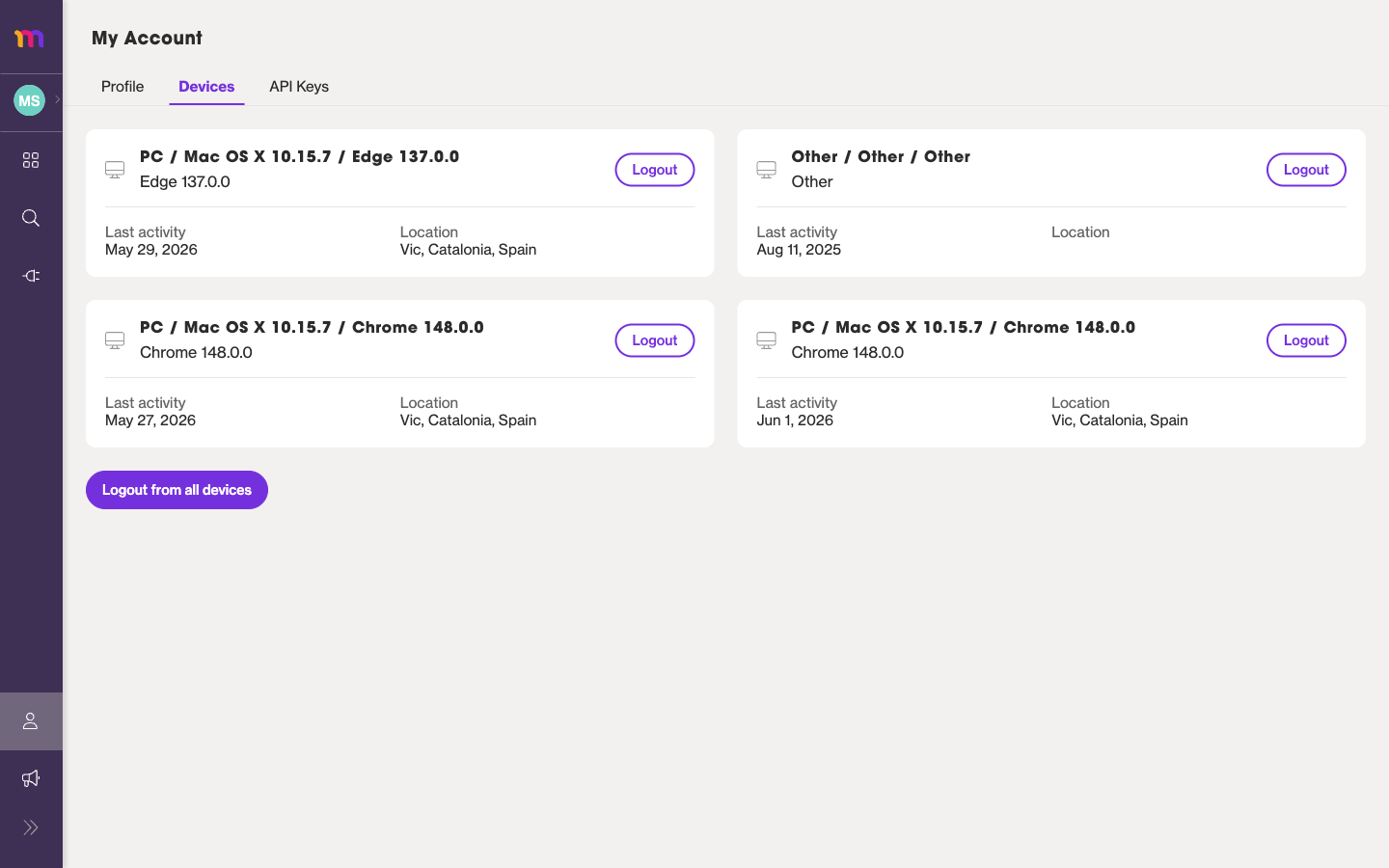
The Devices tab lists every device that’s currently signed in to your Medullar account. For each one you’ll see the browser and operating system, its last activity, and its location, so you can spot anything you don’t recognize.
Logging out a device
If you see a device you no longer use, or one you don’t recognize, you can sign it out without changing your password.
- Open My Account from your user menu and select the Devices tab.
- Find the device you want to remove in the list.
- Select Logout next to it to end that session.
To sign out everywhere at once, use Logout from all devices.
For more on keeping your account secure, see Profile & Password.
What API keys are for
An API key lets your own scripts or tools connect to Medullar on your behalf, without signing in through the app each time. If you only use Medullar through the web app and the browser extension, you don’t need one.
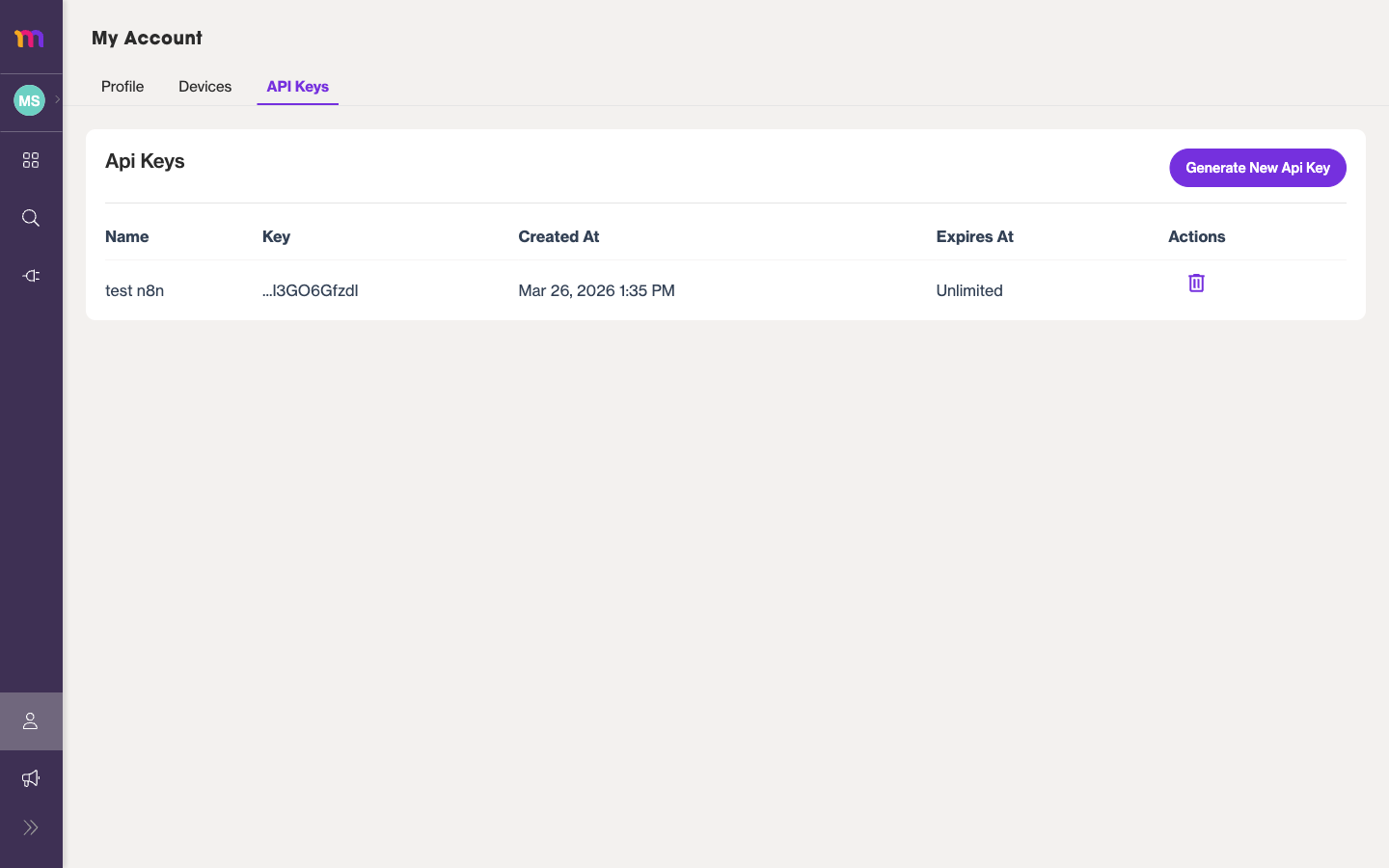
The API Keys table shows each key’s Name, the Key, when it was Created At, when it Expires At, and the Actions available for it.
Generating an API key
- Open My Account and select the API Keys tab.
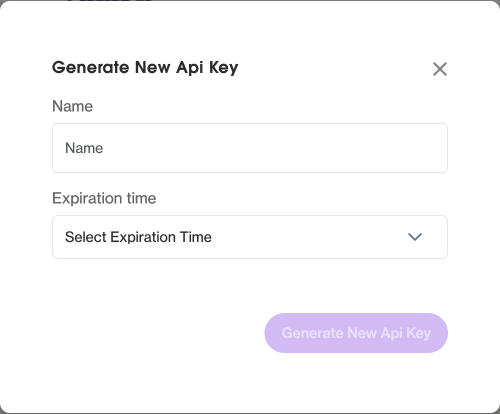
- Select Generate New Api Key.
- Enter a Name that will help you remember where the key is used.
- Choose an Expiration time for the key:
- Unlimited
- 5 Days
- 1 Month
- 6 Months
- 1 Year
- Confirm to create the key.
Storing your key safely
After you create the key, Medullar shows the full key on a Save your key screen with a copy button. Copy it now and store it somewhere secure, such as a password manager.
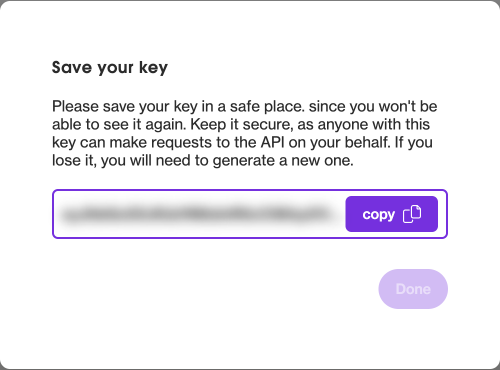 The full key appears once, right after you create it.
The full API key is shown only once. Once you close this screen, you can’t see it again. If you lose it, revoke the key and generate a new one.
Revoking an API key
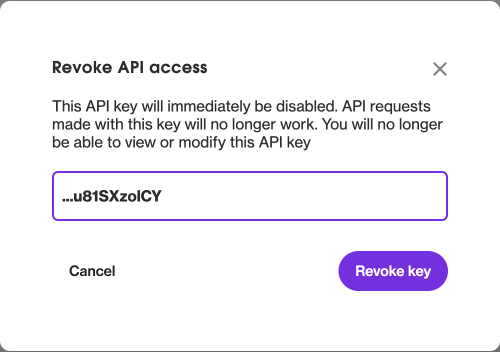
If a key is no longer needed, or you think it may have been exposed, revoke it. Revoking takes effect immediately and any tool using that key will stop working.
- Open the API Keys tab.
- Find the key in the table.
- In the Actions column, select Revoke API access.