Connecting & Managing Your Apps
This is a practical how-to for the My Apps page, where you connect the tools you already use so Medullar can search across them. It complements the per-connector Medullar Apps reference by explaining the mechanics that are common to every connector.
Apps in use vs. apps not enabled
The My Apps page groups your connectors into two sections:
- Apps in Use — connectors you’ve enabled (toggle ON). These are searched and can feed your Spaces.
- Apps Not in Use — connectors that are available but disabled (toggle OFF).
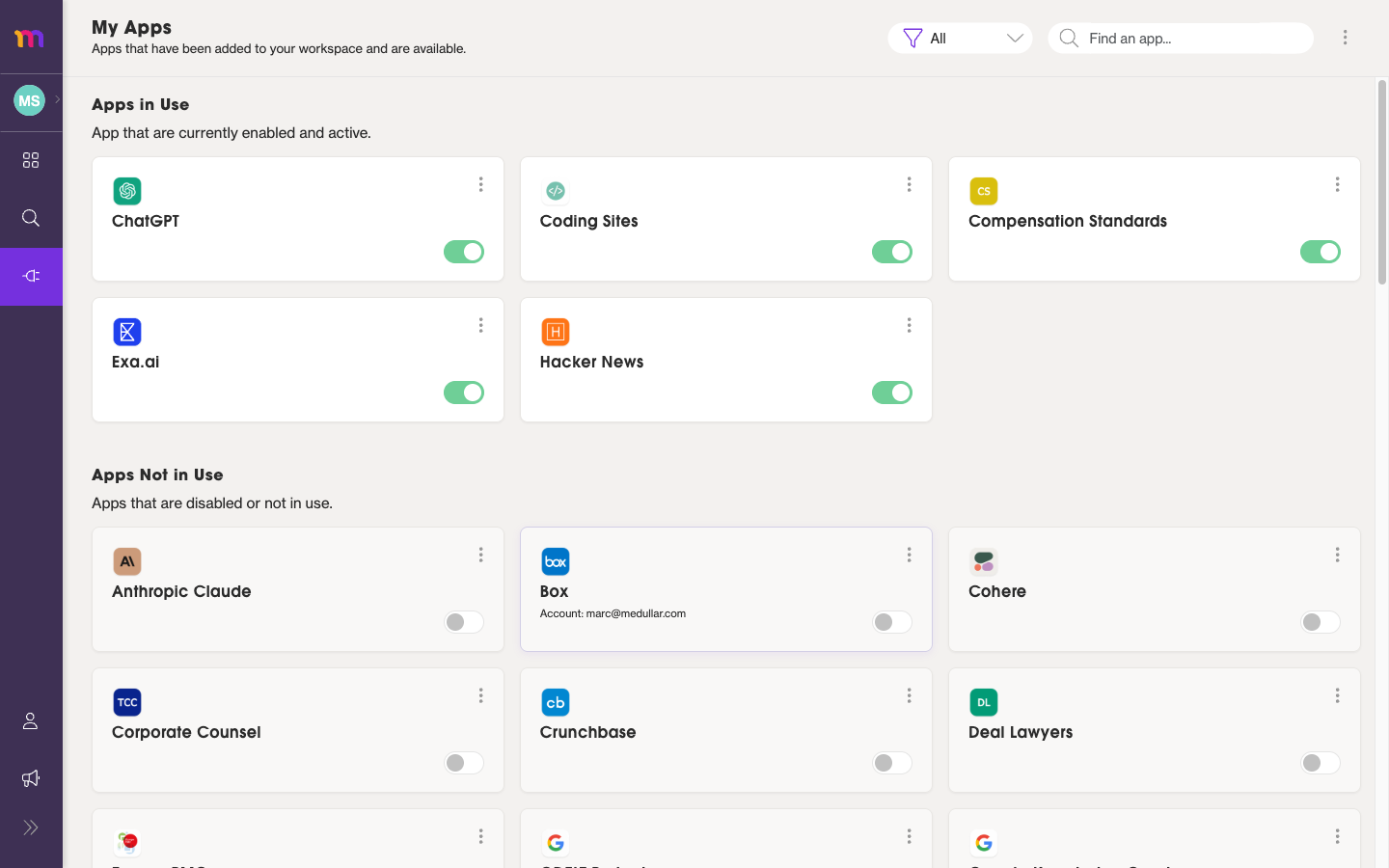
Enabled connectors sit at the top under Apps in Use; everything else stays under Apps Not in Use until you turn it on.
Connecting an app
Many connectors need you to sign in to the source service before Medullar can use them.
- Open My Apps from the main navigation.
- Find the connector you want and click its Sign In button.
- An authorization popup opens. Sign in to that service and approve the access Medullar requests.
- When the popup closes, the connector returns to My Apps ready to enable.
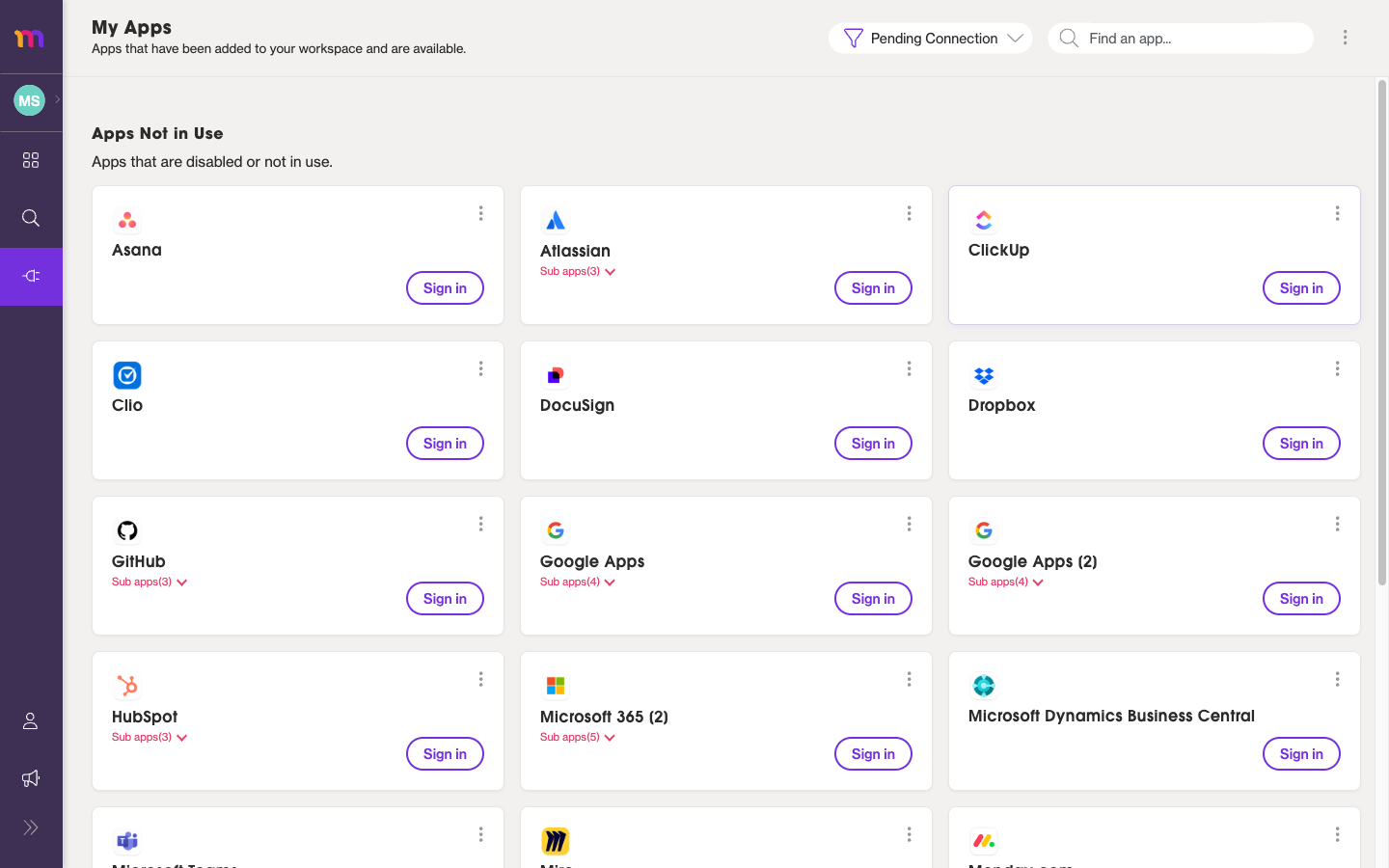
Connectors waiting on sign-in appear with a Sign In button until you complete authorization.
The sign-in popup uses the source service’s own secure login. If your browser blocks the popup, allow popups for Medullar and click Sign In again.
Enabling and disabling connectors
Each connector card has a toggle that controls whether Medullar uses it:
- Toggle ON — the connector moves to Apps in Use and is included in search and your Spaces.
- Toggle OFF — the connector moves to Apps Not in Use and is left out, without losing your connection.
Turning a connector off is a quick way to narrow your results without disconnecting. You can turn it back on at any time.
Sub-apps
Some connectors bundle several services together. When a connector has these, they’re listed under Sub apps (N) on its card.
For example, the Atlassian connector includes sub-apps such as Confluence, Jira, and Trello. Expand the connector to enable only the sub-apps you need so your results stay focused on the tools you actually use.
Viewing connector details
To check what a connector covers before or after enabling it:
- Open the connector card’s menu.
- Choose About to see its details.
For per-connector specifics — descriptions, notes, and the exact scopes each connector requests — see the full Medullar Apps reference.
Finding apps with filter and search
Once you have many connectors, two tools help you find the one you want:
- Status filter — narrow the list by state, each shown with a count:
- All — every connector available to you.
- Active — connectors that are enabled and in use.
- Inactive — connectors that are available but turned off.
- Pending connection — connectors that still need a Sign In to finish setup.
- Find an app… — type a name to jump straight to a connector.
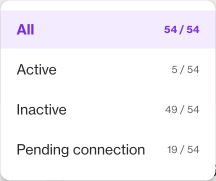
Use the status filter to focus on, for example, only the connectors still pending connection.
Discovering more apps
The connectors available to you are drawn from what your workspace makes visible. If a tool you expect isn’t listed, an admin can make it available at the workspace level — see Connectors & settings.
Once your apps are connected and enabled, head over to Running a search to search across all of them at once.