Workspace Connectors & Settings
As a workspace admin, you decide which connectors the whole team can use and how the workspace behaves. This page walks you through making connectors available to everyone and adjusting your workspace settings.
These controls live in the Workspace admin area (the Apps and Settings tabs) and require a Workspace admin role. If you don’t see them, you’re not an admin on this workspace.
Workspace connectors vs. your personal apps
There are two layers of connector control, and it helps to keep them straight:
- Workspace connectors decide which apps are available to everyone in the workspace. This is the admin-level list you manage from the Workspace → Apps tab.
- Personal apps are the connectors you actually sign in to and switch on for your own searches and Spaces, managed from your My Apps page.
In other words: as an admin you make a connector available; each member still connects and enables it for themselves. For per-connector details and scopes, see the Medullar Apps reference.
Making a connector available
Open the Workspace admin area and go to the Apps tab to control which connectors are marked visible to the workspace.
- In the main navigation, open the Workspace admin area.
- Select the Apps tab.
- Use Add app to make a new connector available, or mark existing connectors as visible to the workspace.
- Save your changes — the connector now appears for your members to connect on their own My Apps page.
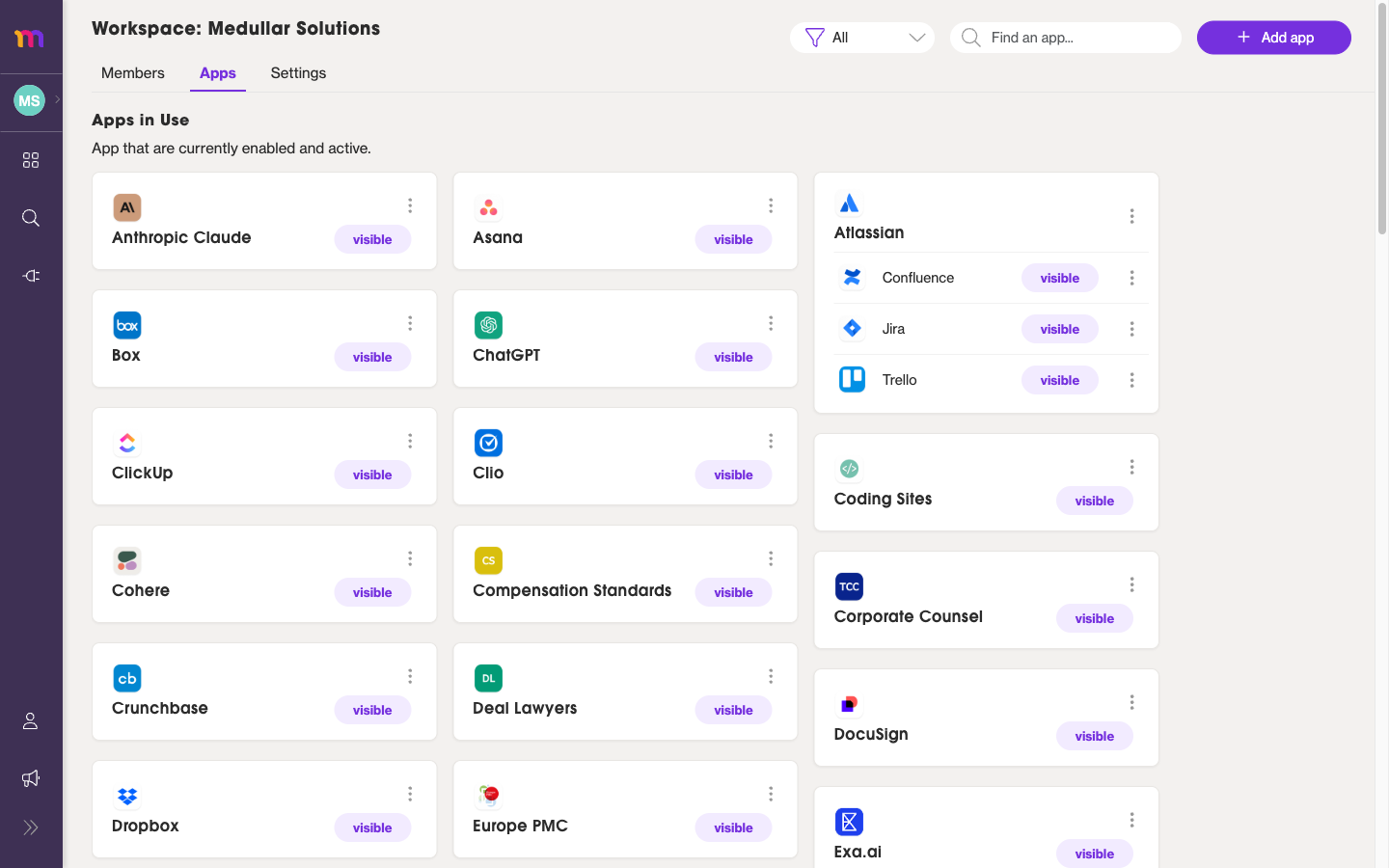
Workspace-level connectors marked visible to the whole team.
Editing the workspace name
Your workspace name appears in the workspace switcher and across the app. To change it:
- Open the Workspace admin area and select the Settings tab.
- Update the Workspace name field.
- Save your changes.
If you manage more than one workspace, see Workspaces & switching for how members move between them.
Configuring workspace settings
The Settings tab also holds the controls that shape how the workspace works. Adjust any of the following:
- Auth Token expiration time — how long members can stay signed in before being logged out for inactivity (for example, 30 days).
- Use Smart App Chooser (Beta) — let Medullar help pick the most relevant connected apps automatically.
- Auto summarize results — automatically generate summaries for search results.
- Own-key fields — optional fields for Cohere API key, Azure OpenAI API Key, and Azure OpenAI API Endpoint. Leave these empty to use Medullar’s own keys; only fill them in if you want to bring your own.
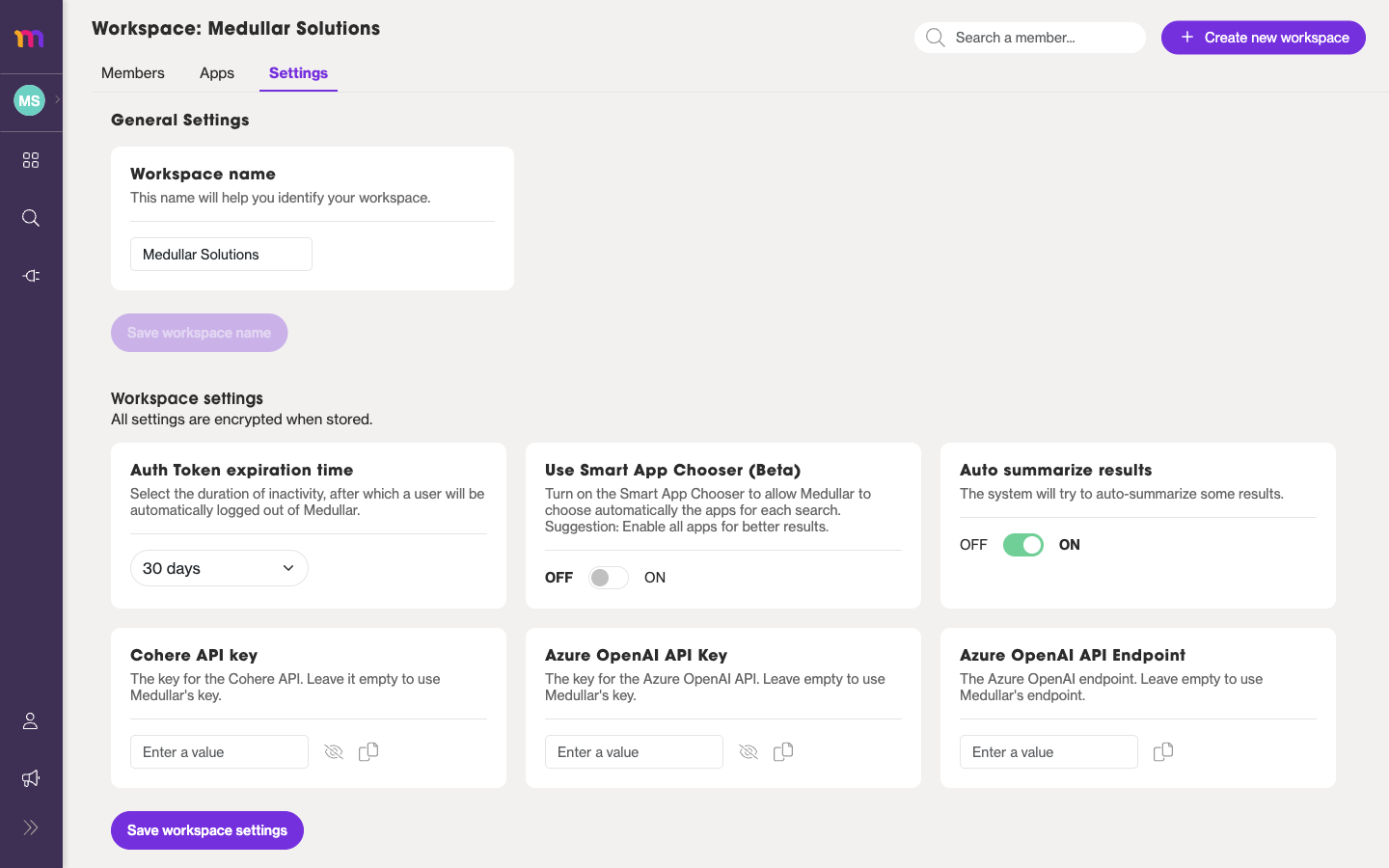
After making changes, save the tab to apply them across the workspace.
All workspace settings are encrypted when stored, so any keys you enter are kept secure.