Profile & Password
Your profile is your personal account in Medullar. Here you can review your details, update your name, and change your password whenever you need to. These settings are available to every user, no matter which plan or subscription you’re on.
Viewing your profile
To find your profile, open your user menu (your avatar in the top right of the main navigation) and choose My Account, then open the Profile tab.
On the Profile tab you’ll see:
- Your name
- Your email address
- The Date joined your account was created
- Your Last activity
You’ll also find the Edit my info and Password options here.
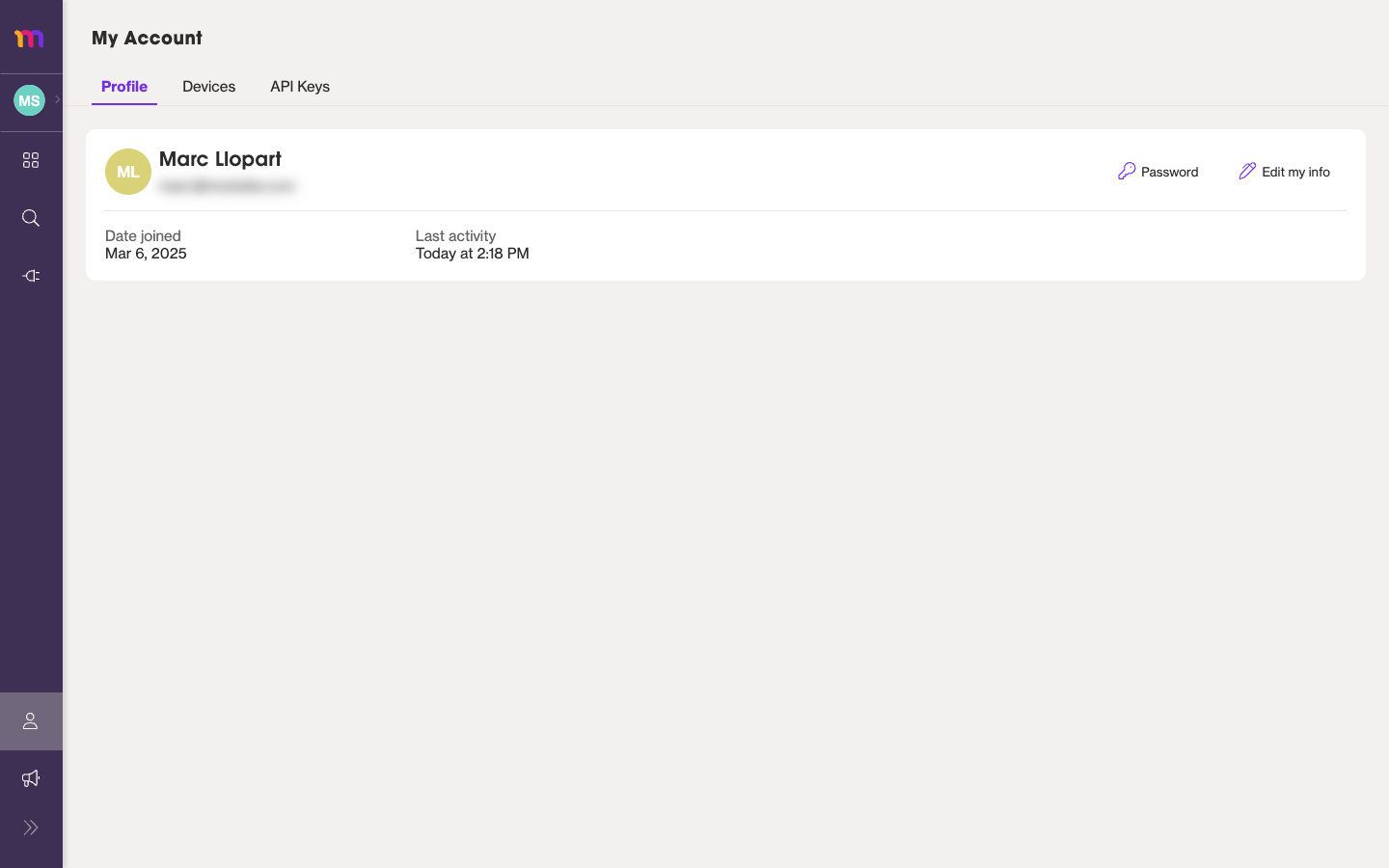
Your Profile tab gathers your account details in one place.
Editing your information
To update your details:
- On the Profile tab, select Edit my info.
- Change your information (such as your name).
- Save your changes.
Your updated details apply to your account right away.
Changing your password
You can change your password at any time from the Profile tab.
- On the Profile tab, select Password.
- In the Change password modal, enter your new password.
- Watch the requirements checklist as you type — each item is checked off once your password meets it.
- Confirm to save your new password.
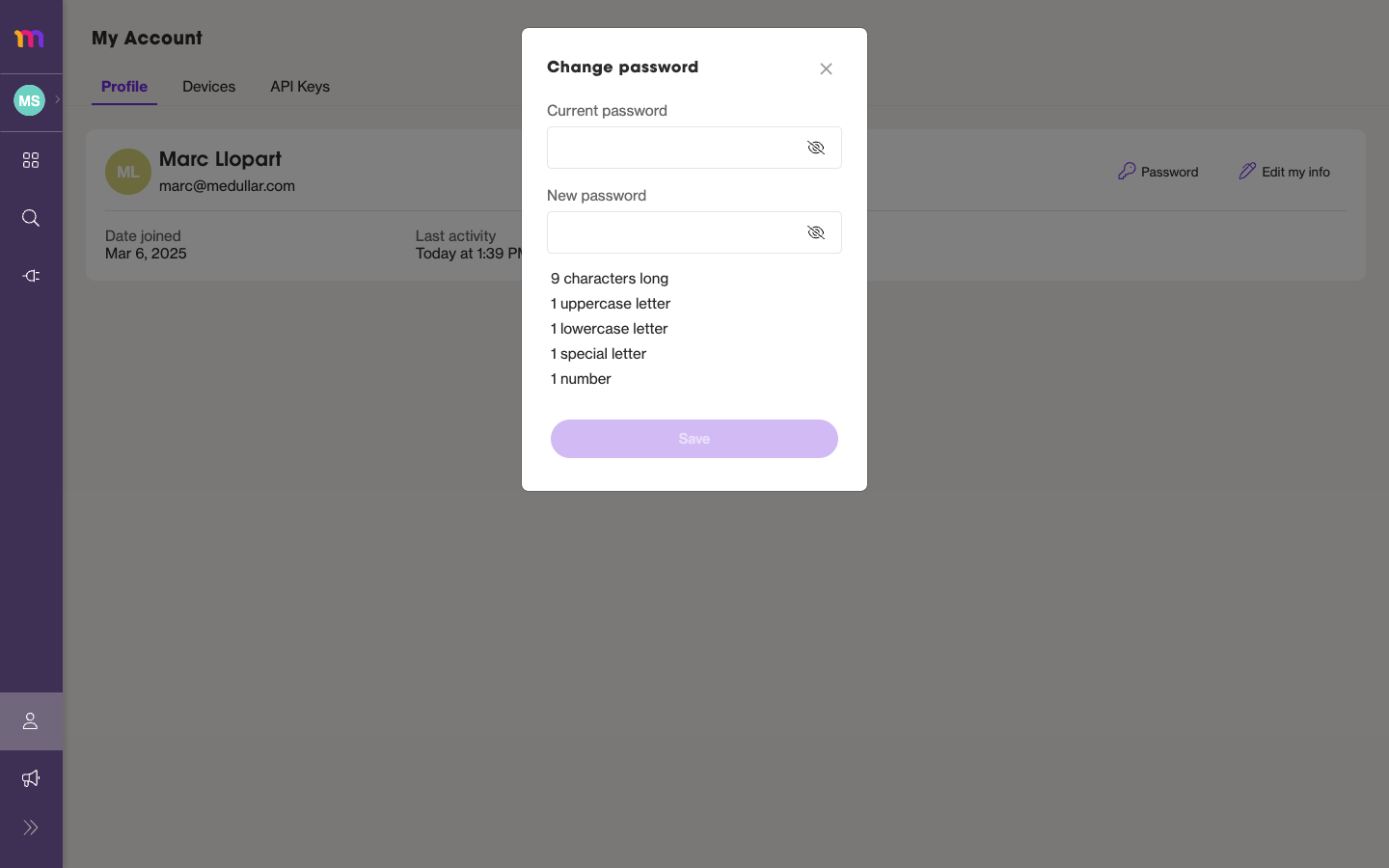
The checklist confirms each requirement as your new password meets it.
If you’ve forgotten your current password, you don’t need this modal. Use the Recover your password link on the sign-in screen instead. See Create an account and sign in.
Password requirements
Every Medullar password must include:
- At least 9 characters
- At least 1 uppercase letter
- At least 1 lowercase letter
- At least 1 special character
- At least 1 number
The same five requirements apply whether you’re changing your password here or resetting it from the sign-in screen.
Related
- Devices & API keys — review where you’re signed in and manage your API keys.
- Create an account and sign in — register, sign in, or recover a forgotten password.