Plans, Upgrades & Cancellation
This page walks you through comparing Medullar plans, moving from a trial to a paid plan, applying a promo code, and cancelling when you need to. It also explains what happens once a free trial ends.
Plan changes affect the whole workspace, so they’re handled by a workspace admin. If you don’t see the options below, ask the admin of your workspace.
Comparing plans
Open your user menu (your avatar), choose Billing, then go to the Plans page to see what each plan includes side by side.
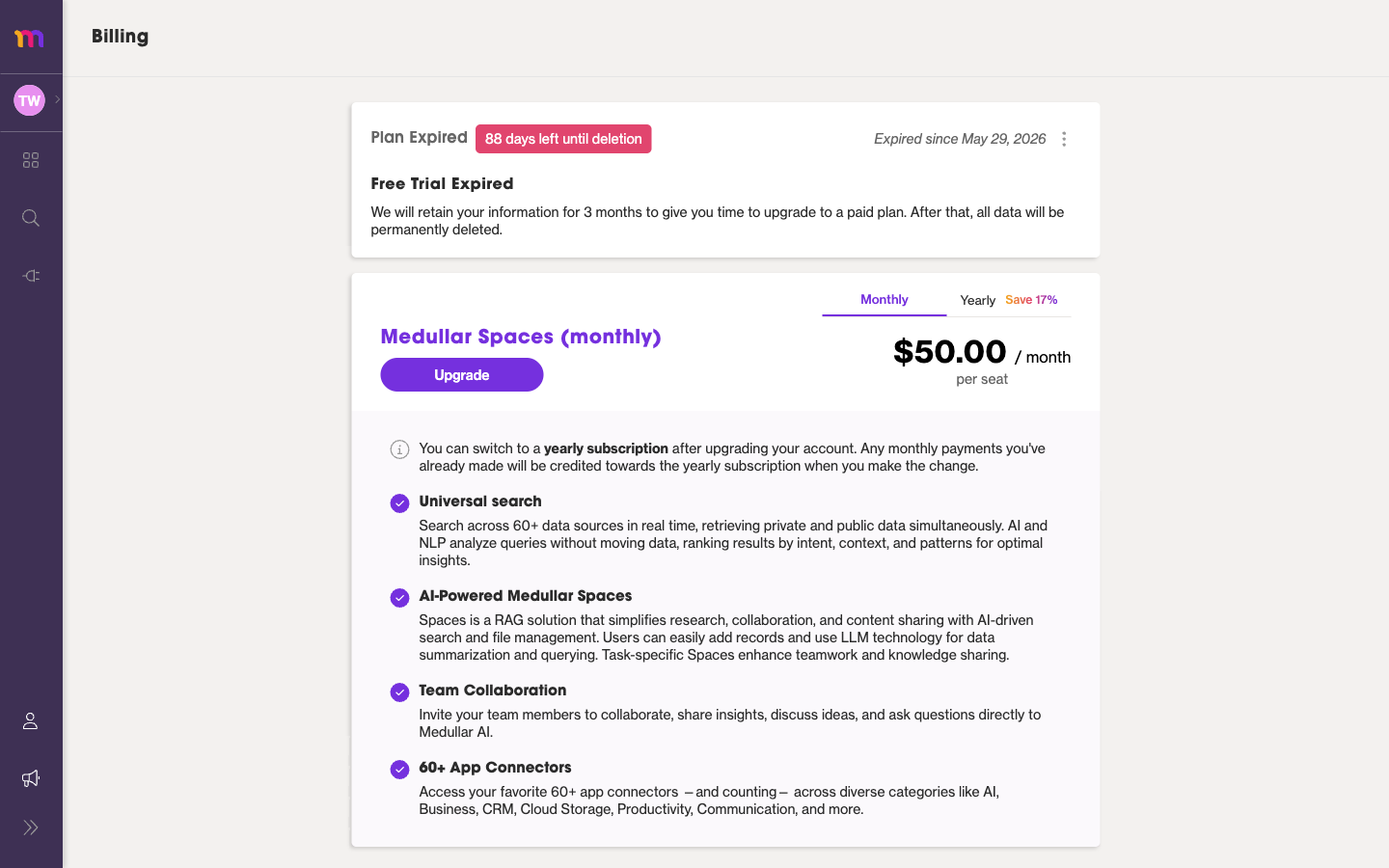 The Plans page, where you compare options and upgrade.
On the Plans page you can:
- Switch between Monthly and Yearly billing with the toggle at the top. Yearly billing saves 17% compared to paying month to month.
- Review per-seat pricing — each plan is priced per seat, so the total depends on how many seats your workspace has.
- Compare what each plan offers before you commit.
For a closer look at how seats and invoices work, see Subscription, Seats & Invoices.
Upgrading your plan
When you’re ready to move from a trial to a paid plan (or step up to a higher plan):
- Go to Billing from your user menu, then open the Plans page.
- Choose Monthly or Yearly with the toggle.
- Find the plan you want and select Upgrade.
- Confirm the details and complete payment. Billing, invoices, and payment methods are handled securely through Stripe.
Once the upgrade goes through, your workspace’s plan and available seats update on the Billing page.
Applying a promo code
If you have a promo code, you can apply it from the Plans page during upgrade:
- On the Plans page, look for the promo-code option.
- Enter your code.
- The discount is applied to your plan before you confirm.
Cancelling your subscription
You can cancel from the Billing area at any time:
- Open Billing from your user menu.
- On the Plan card, select Manage plan.
- Choose to cancel and select a reason when prompted.
Cancellation is managed through the same Stripe-powered flow used for the rest of your billing. Your seats and invoices stay visible on the Billing page so you can review them. See Subscription, Seats & Invoices for details.
What happens when a trial expires
If your free trial ends without upgrading, your workspace lands on the Billing/Plans page and features stay locked until you upgrade. You’ll see a “Free Trial Expired” message.
An expired trial includes a 3-month data-retention notice: your data is kept for 3 months before deletion. Upgrade within that window to keep your Spaces, records, and connected apps. After it passes, the data is removed.
To restore access, upgrade from the Plans page by following the steps in Upgrading your plan above.