Create Your Account & Sign In
This page walks you through everything a brand-new user needs to get into Medullar: creating an account, signing in, recovering a forgotten password, and the rules your password must follow.
Registering a new account
Creating an account is free to start.
No credit card needed to register. You can start exploring Medullar right away.
- Go to Medullar and open the registration form.
- Enter your Full name (First and Last).
- Enter your E-mail address.
- Enter your Company name.
- Tell us “How did you hear about us?”.
- (Optional) If you were given one, select “Have a promo code?” and enter your code.
- Choose a password that meets the password requirements, then submit the form.
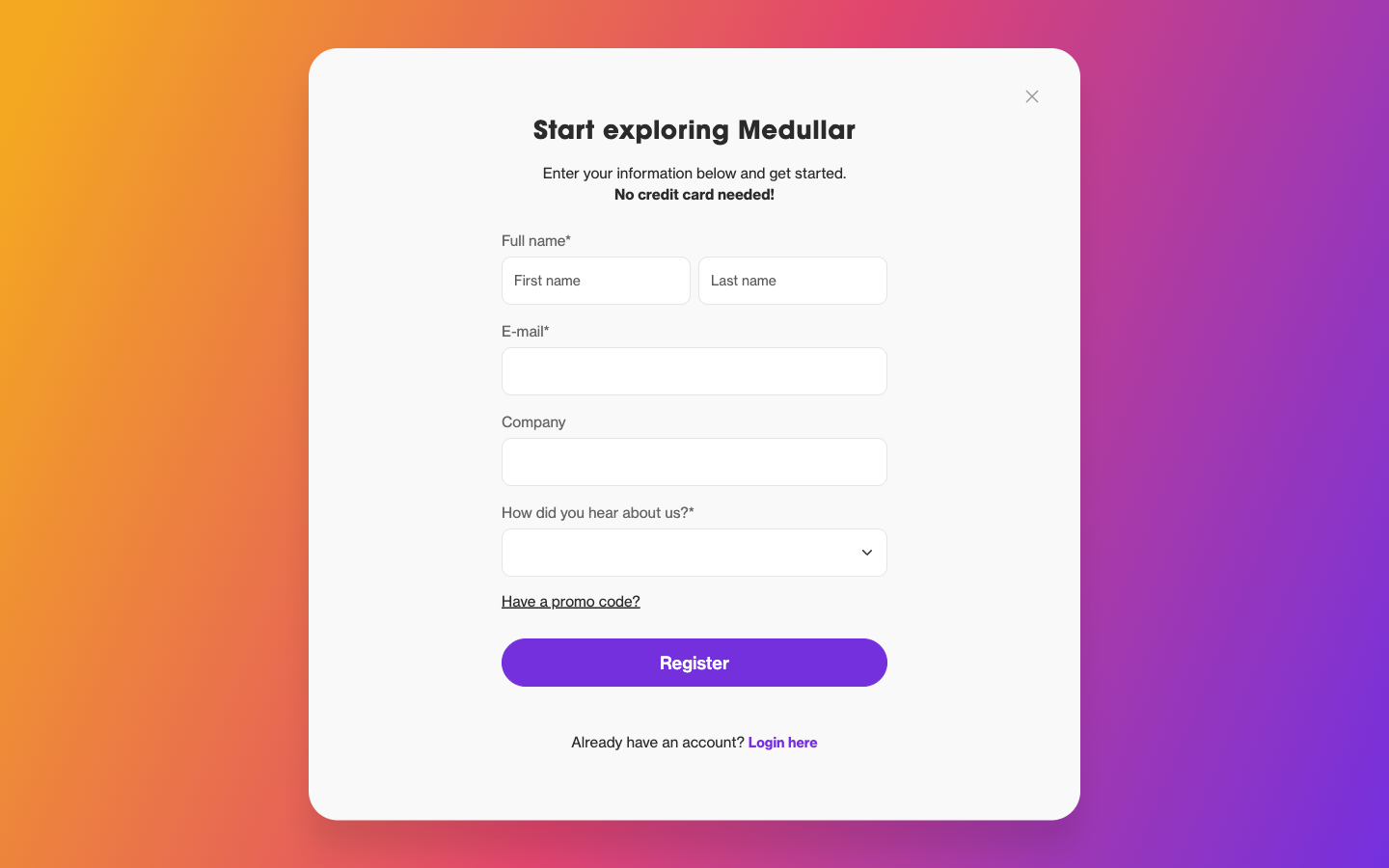 Start exploring Medullar — no credit card needed.
After you register, Medullar guides you through a short setup. See the Onboarding Wizard for what each step does.
Signing in
Already have an account? Signing in takes your email and password.
- Go to Medullar and open the sign-in screen.
- Enter your E-mail address.
- Enter your password.
- Select Sign in.
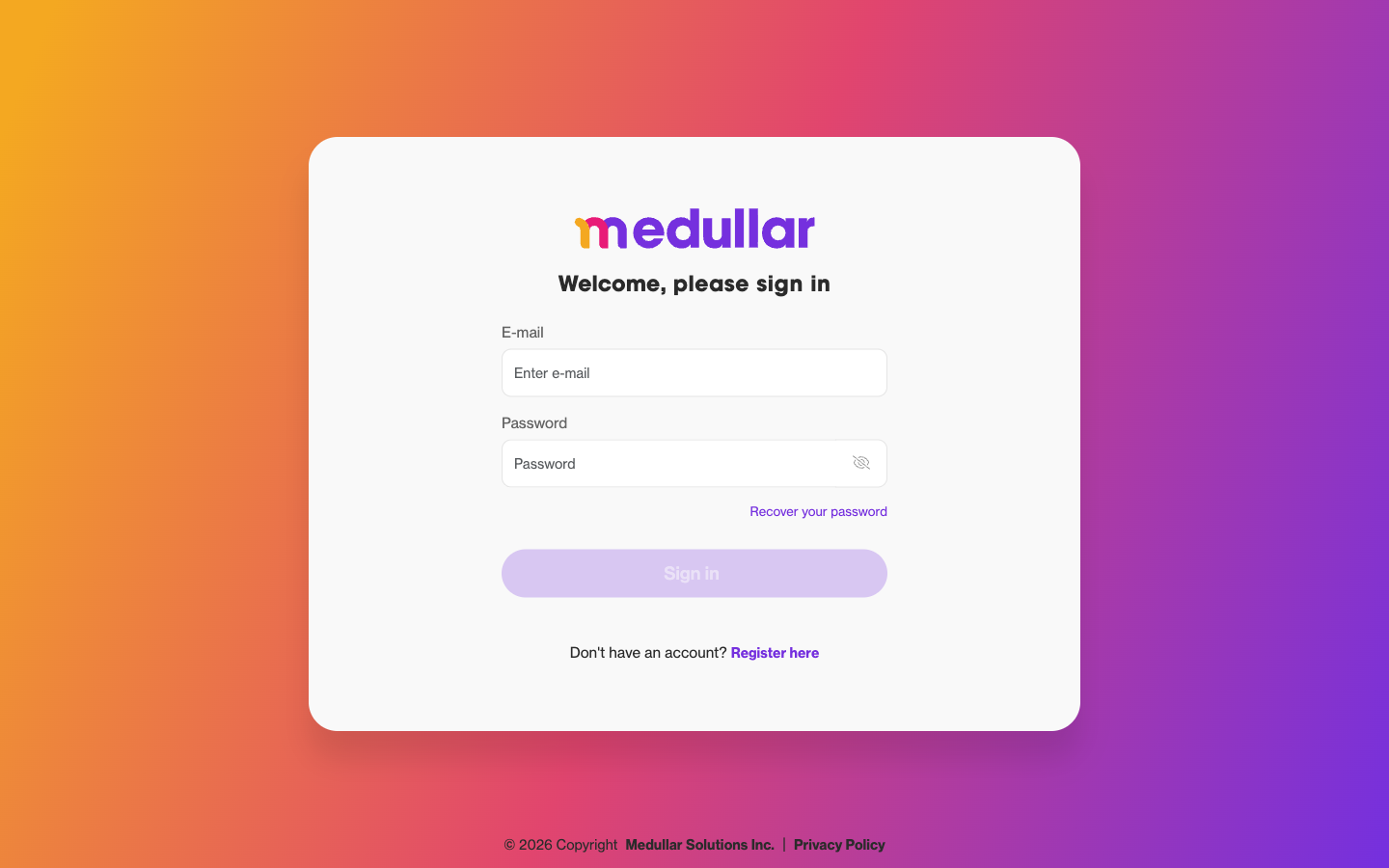
Once you’re in, Medullar lands you on your Spaces, ready to start working.
If you’ve forgotten your password, use the “Recover your password” link on this screen — see the next section.
Recovering a forgotten password
If you can’t remember your password, you can reset it by email.
- On the sign-in screen, select “Recover your password”.
- Enter the email address for your account.
- Select Send reset link.
- Check your inbox and open the reset email, then follow its link to set a new password.
- Choose a new password that meets the password requirements below.
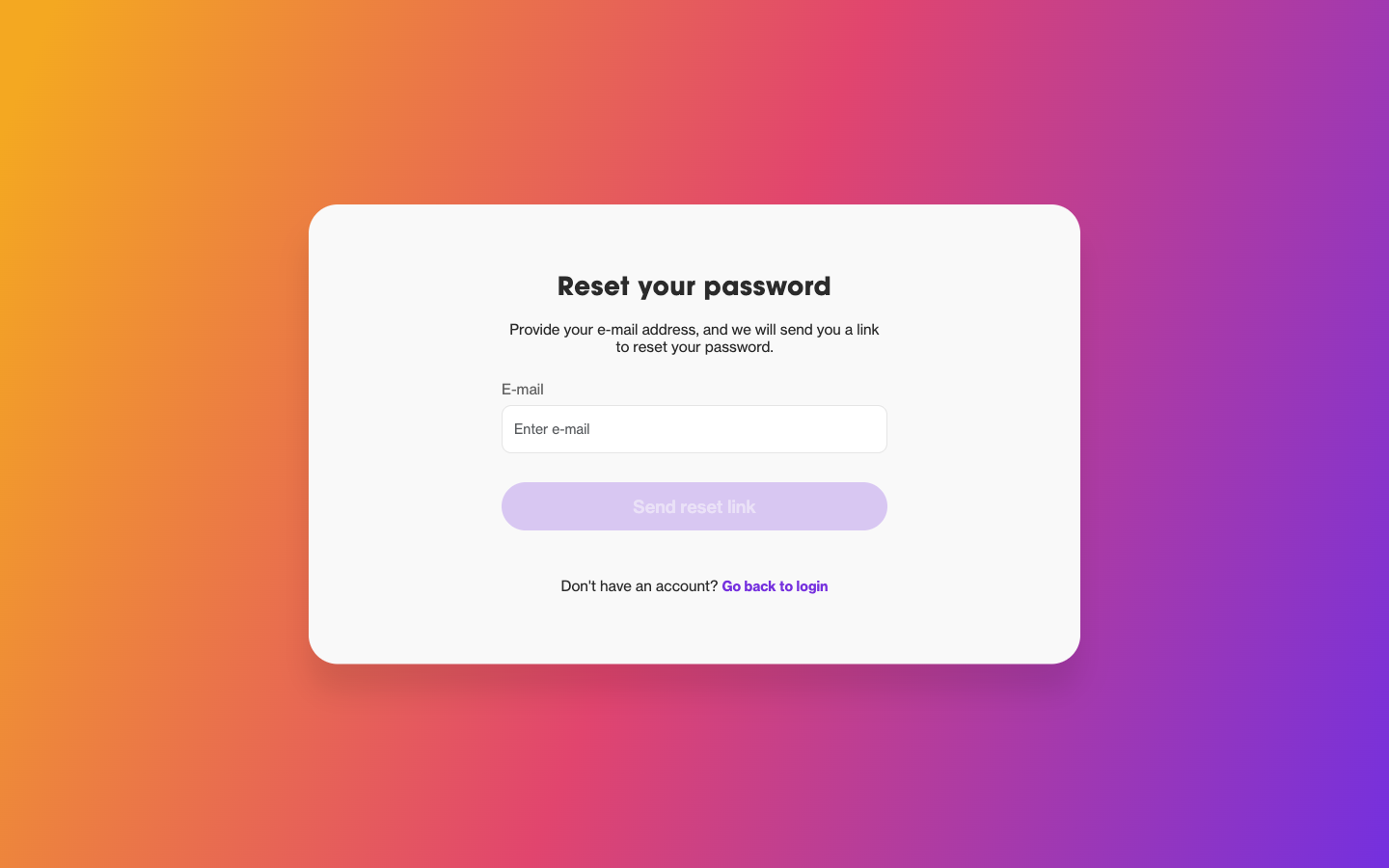
Once your new password is saved, return to the sign-in screen and log in with it.
Password requirements
Every Medullar password must include all of the following:
- At least 9 characters
- At least 1 uppercase letter
- At least 1 lowercase letter
- At least 1 special character
- At least 1 number
These same rules apply whenever you change your password later. To update it from inside the app, see Profile and Password.
Troubleshooting sign-in
If you’re having trouble getting in, check the following:
- Double-check your email and password. Make sure there are no extra spaces and that Caps Lock is off.
- Password rejected when changing it? Confirm it meets all five password requirements.
- Forgotten password? Use “Recover your password” to receive a reset link by email.
- No reset email? Check your spam or junk folder, and confirm you entered the email address tied to your account.