Medullar Apps
Medullar connects to the tools you already use so you can search them all from one place. This section is the reference for every connector (“App”) you can add. Each connector has its own page with details, notes, and the permissions it needs.
What are Medullar Apps?
Apps (also called connectors) are the integrations that link your accounts to Medullar. Once an app is connected, Medullar can search across it and feed its content into your Spaces, so a single question reaches everything at once instead of you jumping between tools.
There are 60+ connectors and growing, covering productivity suites, communication and CRM tools, and a wide range of public news, research, and reference sources.
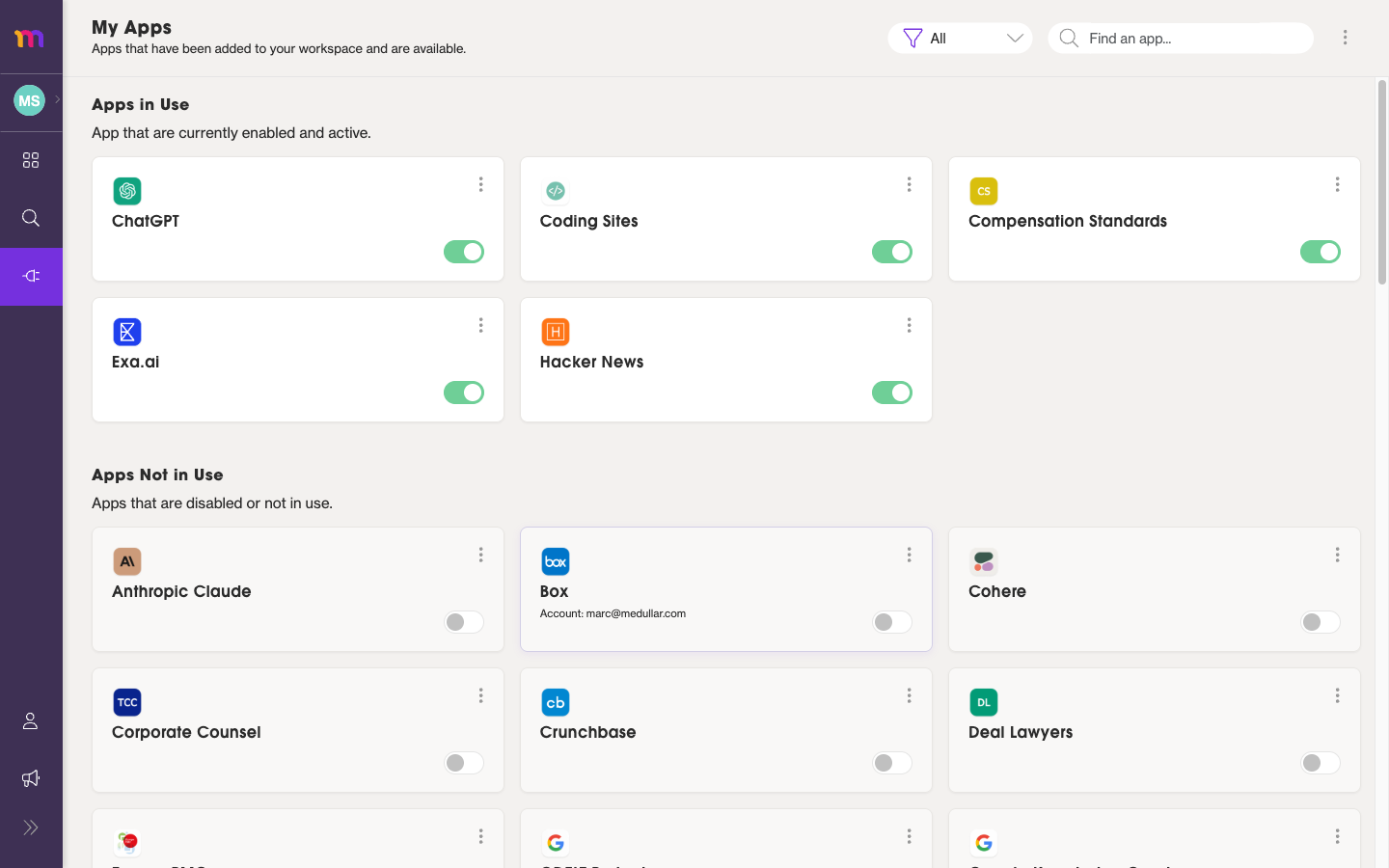 Your connectors, grouped into the apps you use and the ones you can still add.
Categories of connectors
The available apps fall into a few broad groups:
- Productivity suites — Google Workspace, Microsoft 365, and similar tools, including their sub-apps.
- Communication and team tools — chat and collaboration apps such as Slack.
- CRM and business apps — customer and sales tools such as Salesforce.
- Developer tools — source and project hosting such as GitHub.
- Public sources — news, research, legal, and other reference sources you can search without connecting an account.
Browse the child pages in this section for the full, up-to-date list and what each connector covers.
How to connect an app
Connecting an app takes just a few clicks:
- Open My Apps from the main navigation.
- Use the Find an app… search to locate the connector you want.
- Select Sign In and approve access in the popup that opens.
- Switch the connector’s toggle ON to start using it in search and Spaces.
For the full walkthrough — including OAuth sign-in, sub-apps, and managing what’s connected — see Connecting Your Apps.
Once your apps are connected, head to Running a Search to query them all at once.
Browse the connectors
Pick any connector from the list in this section to open its reference page. Each page describes what the connector does, useful notes, and the permissions (scopes) it requests when you connect it.