Filtering & Sorting Results
A broad search can return a lot at once. The filters panel and sort control let you focus your results down to exactly what you need — by app, by result type, by date, and in the order that’s most useful to you.
This page assumes you’ve already run a search and are looking at the results page.
Opening the filters
The results page shows your matches as cards grouped by source. The filtering tools sit in a panel on the left, alongside those results.
The filters panel has three sections — Apps, Result Type, and Date — plus a sort control above your results.
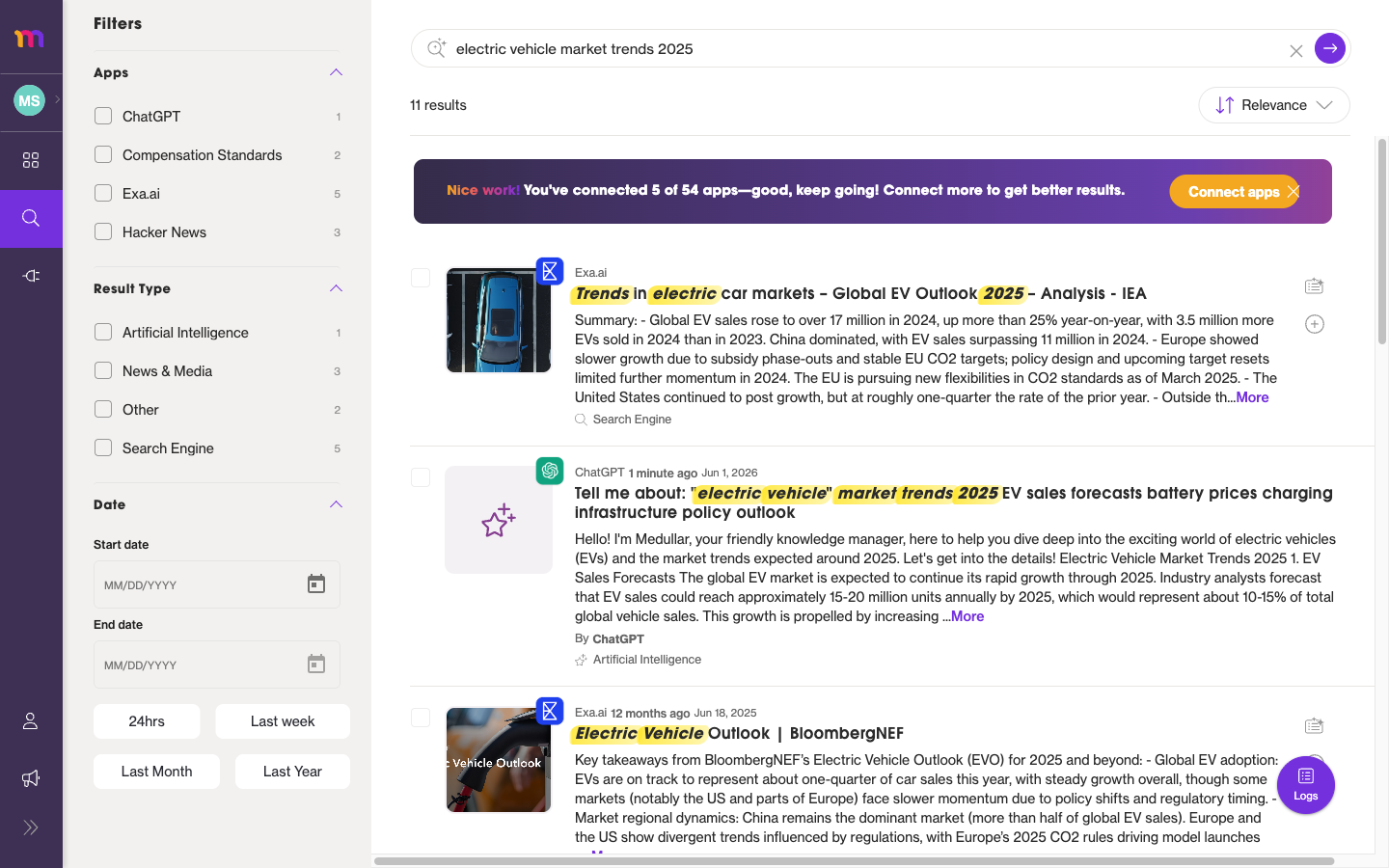 The filters panel on the left, with your results streaming in beside it.
Filter by app
Use the Apps filter to limit results to specific connected apps. This is handy when you only want answers from, say, your documents or one particular source.
- In the filters panel, find the Apps section.
- Select the app or apps you want to keep in your results.
- The results update to show matches from only the selected apps.
The apps available here are the ones you’ve connected. Want results from more sources? See Connecting Your Apps to add more connectors.
Filter by result type
The Result Type filter narrows your results by the kind of item that matched — for example, a document, a message, or another type of record. Each result card carries a result-type label, so you can see at a glance what you’re filtering toward.
- Pick one or more result types to keep.
- Results that don’t match the selected types drop out of the list.
Filter by date
The Date filter limits results to a time window. You can choose a preset or set your own range.
The presets are:
- Last 24hrs
- Last week
- Last Month
- Last Year
For anything more specific, choose the custom range option and pick your own start and end dates.
Sorting results
Above your results is a sort control that sets the order they appear in — for example, by Relevance. Sorting changes the order of the results without removing any, so it works alongside whatever filters you’ve applied.
Clearing and combining filters
Filters stack together. You can combine Apps, Result Type, and Date at the same time to drill in quickly — for instance, documents from one app within the last week.
- Each filter narrows the set further, so the more you add, the tighter your results.
- To widen your results again, deselect a filter or clear it to bring those matches back.
- Adjust the sort order at any point; it applies to whatever is currently showing.
Once you’ve focused your results, you can select the ones you want and keep them — see Saving & Exporting Results to add them to a Space or export them to CSV.