The Medullar Browser Extension
The Medullar browser extension brings universal search into your browser, so you can search across your connected apps and public sources without leaving the page you’re already on.
Why use the browser extension
The extension is the fastest way to reach Medullar while you work. Instead of switching tabs and signing in again, you search your world from wherever you happen to be.
- Search across your 60+ connected apps and public sources in one place.
- Stay in your current tab while you look something up.
- Pick up where you left off without breaking your flow.
Installing for Chrome, Edge, or Brave
The extension is installed from your browser’s own extension store, not from inside Medullar. During the onboarding wizard, Medullar prompts you to add it as one of the setup steps.
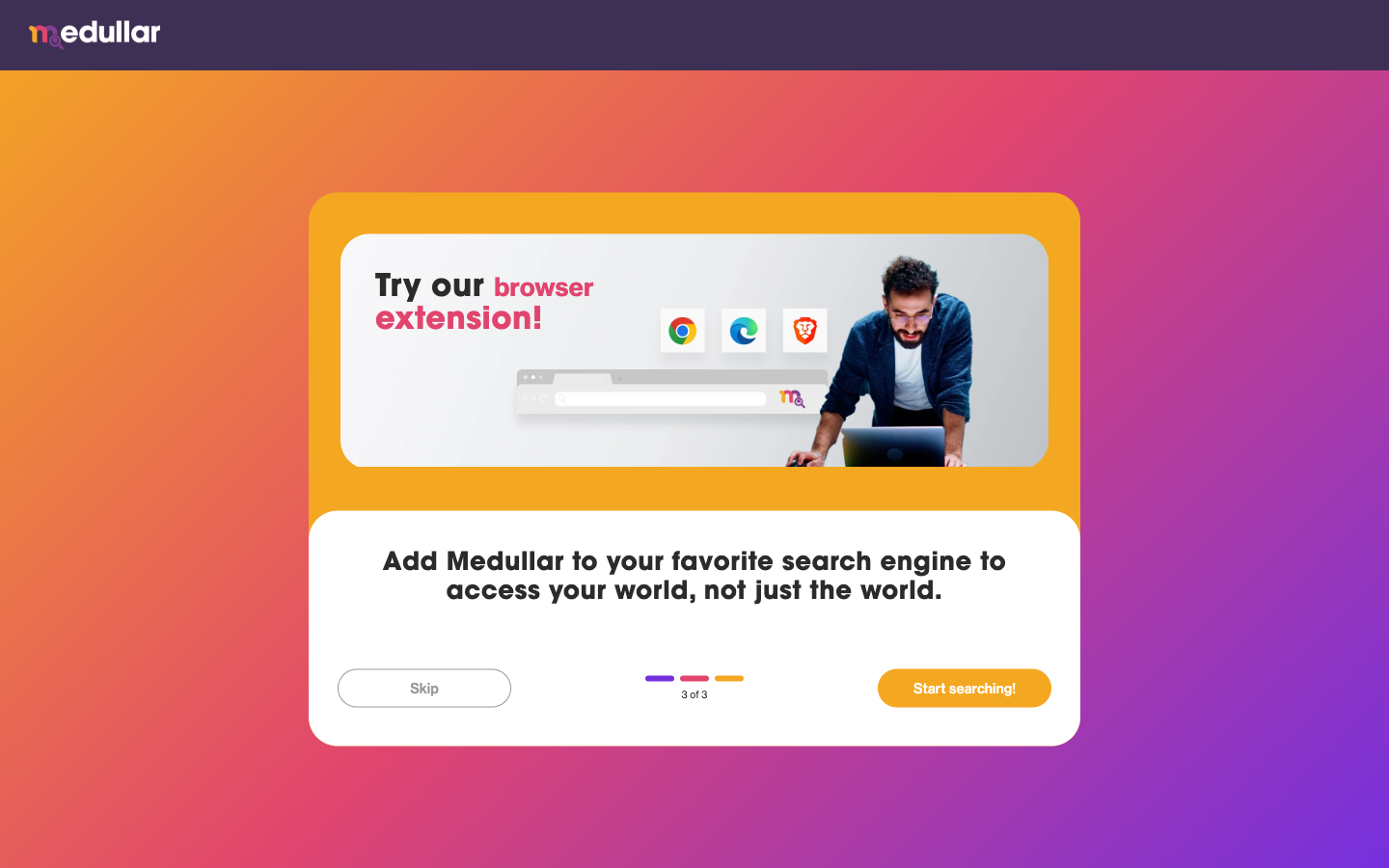 The onboarding step where Medullar invites you to install the browser extension.
To install it:
- Open the extension store for your browser (Chrome Web Store, the Edge Add-ons site, or, for Brave, the Chrome Web Store).
- Search for the Medullar extension and choose Add to browser.
- Confirm any permissions your browser asks for to finish installing.
- Open the extension and sign in to Medullar with the same account you use in the app.
You can install the extension at any time, even if you skipped that step during onboarding. Just head to your browser’s extension store.
Searching Medullar from any page
Once it’s installed and you’re signed in, the extension lets you run a Medullar search from any page:
- Open the Medullar extension from your browser’s toolbar.
- Type what you’re looking for in the search box.
- Review the results, grouped by source, just like in the app.
This is the same federated search you use inside Medullar, so the results you see follow the apps you’ve connected. For more on how search works and how to refine it, see Running a Search.
Getting the most out of it
A few habits make the extension more useful day to day:
- Connect more apps. The more sources you connect, the more the extension can find. See Running a Search for how results come together.
- Pin it to your toolbar. Keep the extension icon visible so it’s one click away.
- Use the same account. Sign in with your Medullar account so your connected apps and results match what you see in the app.