AI Agents Overview
Beyond the built-in assistants, Medullar lets you build your own custom AI agents — specialized versions of the Medullar AI with their own instructions, model, tools, knowledge, and personality. Create an agent once, then use it in any Space chat. This page introduces the Agents library; the next pages show you how to create and edit and use an agent.
What is a custom agent?
A custom agent is a reusable assistant you configure for a specific job — a “Due diligence analyst,” an “RFP writer,” a “Support triager.” Each agent carries its own:
- Identity — a name, description, category, and avatar.
- Instructions — the system prompt, a welcome message, and conversation starters.
- Brains — the model provider (OpenAI, Claude, or Grok) and how hard it reasons.
- Abilities — the tools it can use and the connected apps it may query.
- Knowledge — the Spaces it draws on for answers.
The Agents library
Open Agents from the left sidebar to see every agent available to your workspace.
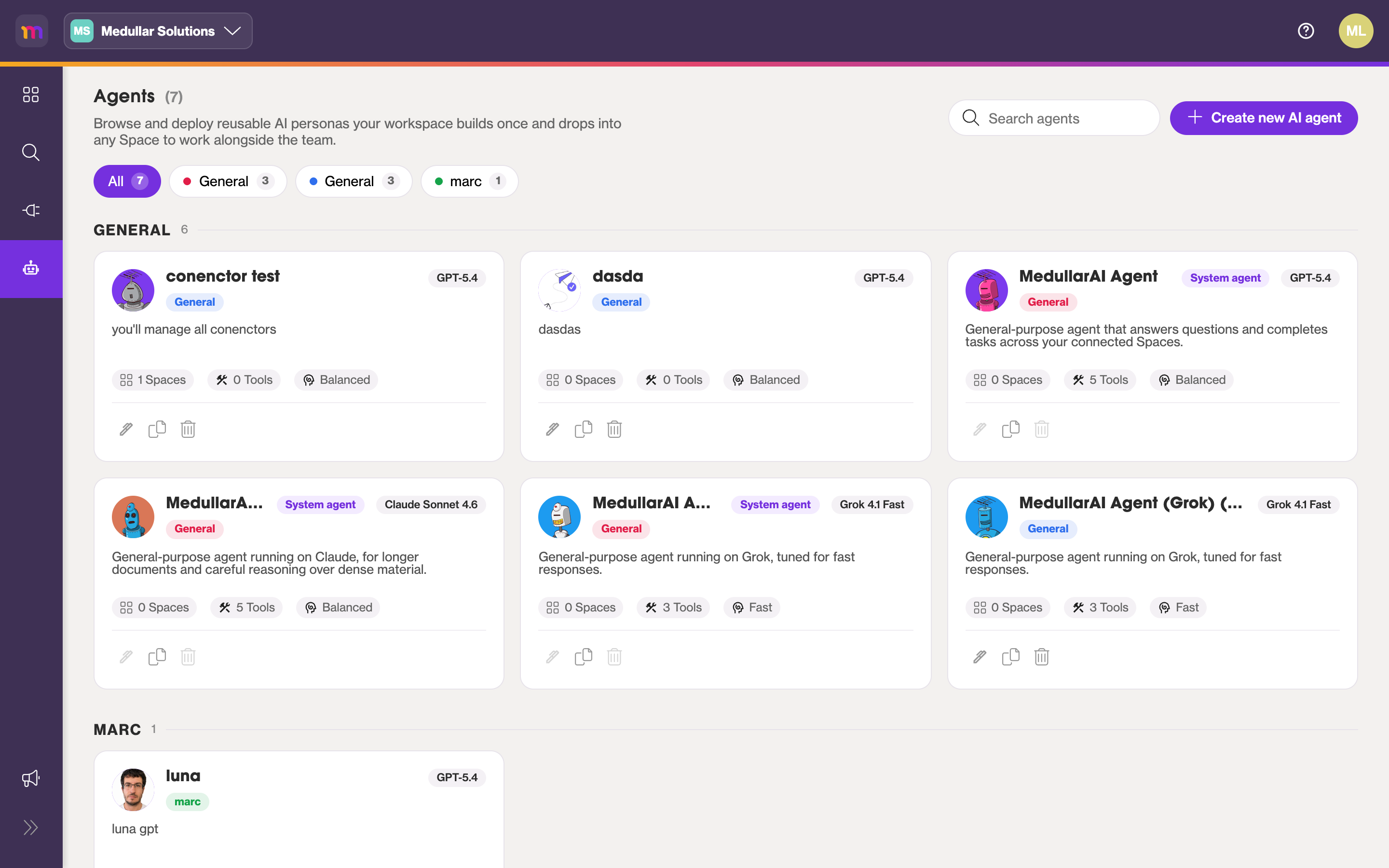 The Agents library, with category tabs across the top and an agent card for each assistant.
- Category tabs at the top filter the grid — All, General, and any categories your workspace has created. The number on each tab is how many agents it holds.
- Each agent card shows the agent’s avatar, name, category, model, and reasoning effort, plus quick actions to edit, duplicate, or delete it.
System agents vs. your agents
Two kinds of agents live side by side in the library:
- System agents are provided by Medullar. They’re available to everyone and are read-only — you can use and duplicate them, but not edit or delete them. To customize one, duplicate it and edit the copy.
- Workspace agents are the ones your team creates. Only the agent’s creator can edit or delete it; everyone else in the workspace can use and duplicate it.
Avatars
Every agent has a circular avatar:
- By default, an agent gets a generated robot avatar whose look is seeded on its name, on a colored background you can pick.
- You can upload your own image and crop it to a circle. See Creating & editing an agent.
Private agents
When an agent is marked private, only its creator can find, use, and edit it — it’s hidden from the rest of the workspace. Leave it off to share the agent with your team.
Ready to build one? Head to Creating & editing an agent.