Spaces Overview & Creating a Space
Spaces are collaborative, AI-powered knowledge containers where you and your teammates work alongside the Medullar AI. This page explains what a Space is and walks you through creating your first one.
What is a Space?
A Space is a place to gather knowledge and put the Medullar AI to work on it. Inside a Space you can:
- Chat with the Medullar AI over your connected data and the public web.
- Add records — files, URLs, or text — to give the AI knowledge to draw from.
- Pin important answers so you can find them again.
- Follow the Discovery Path to see the sources and reasoning behind each answer.
Think of a Space as a focused project hub: one for a research effort, one for a client, one for a team initiative — whatever helps you keep related work together.
My Space vs. shared Spaces
Every account starts with My Space, your personal default Space. It is always there and ready to use, just for you.
Beyond that, you can create as many Spaces as you need, and a Space can be shared with teammates so you collaborate in the same place. When you create a Space you become its Owner, and you can invite other people to join. To learn more about adding people and keeping Spaces tidy, see Organizing and Sharing Spaces.
Browsing your Spaces
Select the Spaces icon in the main navigation to open your list of Spaces. They appear as cards in a grid, and from here you can find and manage everything in one view.
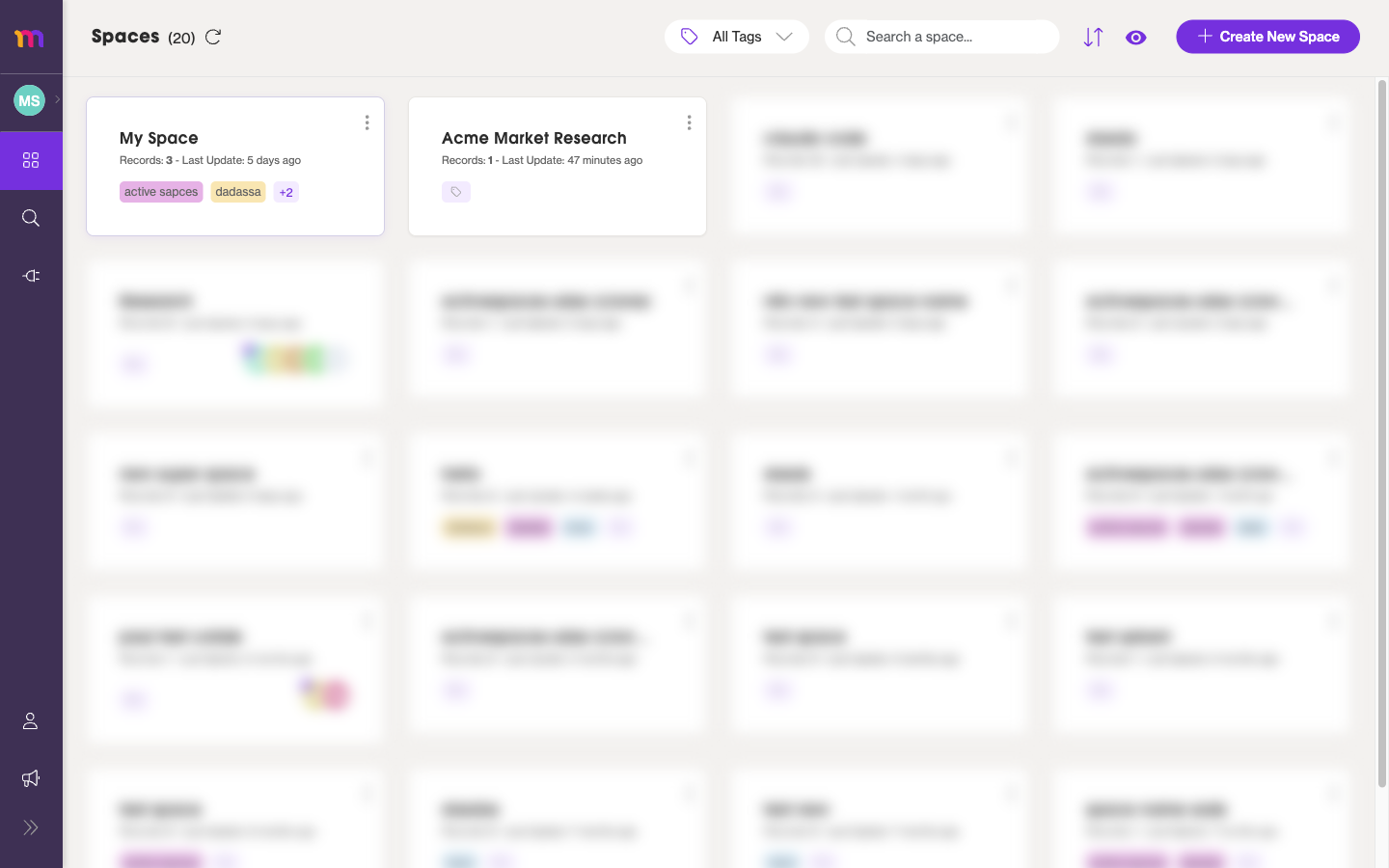
The grid gives you a few ways to get around:
- A “Search a space…” box to find a Space by name.
- A tag filter (“All tags”) to narrow the grid to a category.
- View toggles to change how the cards are laid out.
- Create New Space to start a new one.
Each Space card has a menu with quick actions: Rename, Archive, Clone, and Delete.
Creating a new Space
To create a Space:
- Open Spaces from the main navigation.
- Select Create New Space.
- Enter a name for the Space.
- Optionally add one or more tags, each with a color, to help group and filter your Spaces later.
- Confirm to create the Space.
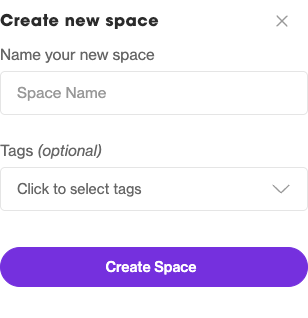 Give your Space a clear name — for example, “Acme Market Research” — and add tags if it helps.
Tags are optional, but they make a growing list of Spaces much easier to filter from the grid. You can always add or change them later.
The empty state: where to start
A brand-new Space opens empty and ready for your first move.
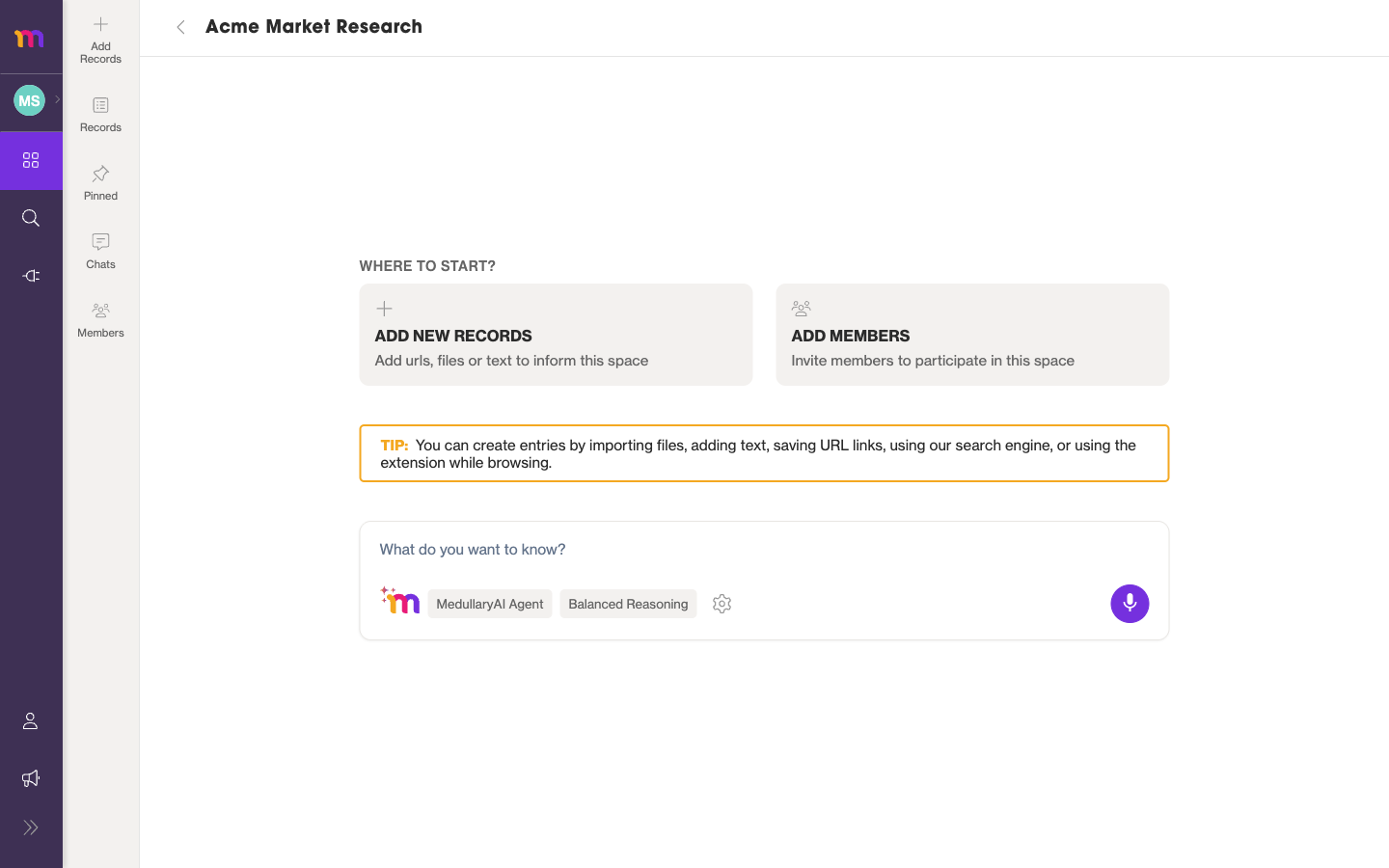
From here you have two natural starting points:
- Add records — bring in files, URLs, or text so the AI has knowledge to work from. See Records, Pins, and the Discovery Path.
- Start chatting — type into the “What do you want to know?” box and let the Medullar AI help right away. See Chatting with the AI.
You don’t have to add records before you chat — but the more you give a Space, the more grounded and useful its answers become.