Records, Pins & the Discovery Path
A Space is more than a chat. This page shows you how to build a knowledge library with records, keep your best answers handy by pinning them, and see exactly how the AI reached an answer with the Discovery Path.
Adding records to a Space
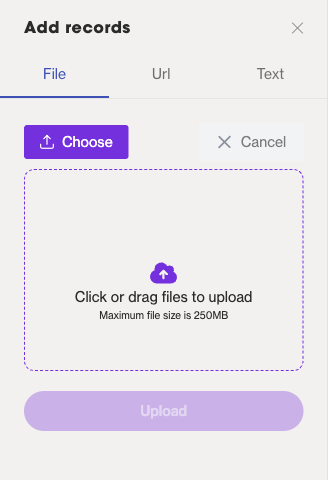
Records are the knowledge you bring into a Space. Once indexed, the AI can draw on them when it answers your questions. Open the Add Records tool from the left toolbar inside your Space, then choose how you want to add knowledge:
- File — upload a document from your computer.
- Url — point Medullar at a web page.
- Text — paste in text directly.
After you add a record, it appears with a Processing status while Medullar indexes it. Once processing finishes, the record is ready for the AI to use.
A record stays in Processing for a short while as it is indexed. Wait for that to clear before expecting the AI to reference it in an answer.
Saving an AI answer as a record
Great answers are worth keeping. When the AI gives you a response you want to reuse, open the message actions menu on that answer and choose Add response to records. The answer is saved into the Space’s knowledge library alongside your other records.
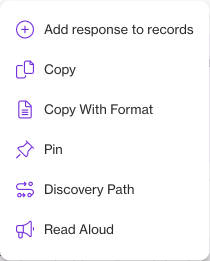
The same menu also lets you Copy, Copy With Format, Pin, open the Discovery Path, or have the answer Read Aloud.
Managing your records
Open the Records tool from the left toolbar to see everything you’ve added to the Space. The Records drawer lists each record so you can review what knowledge the AI has to work with.
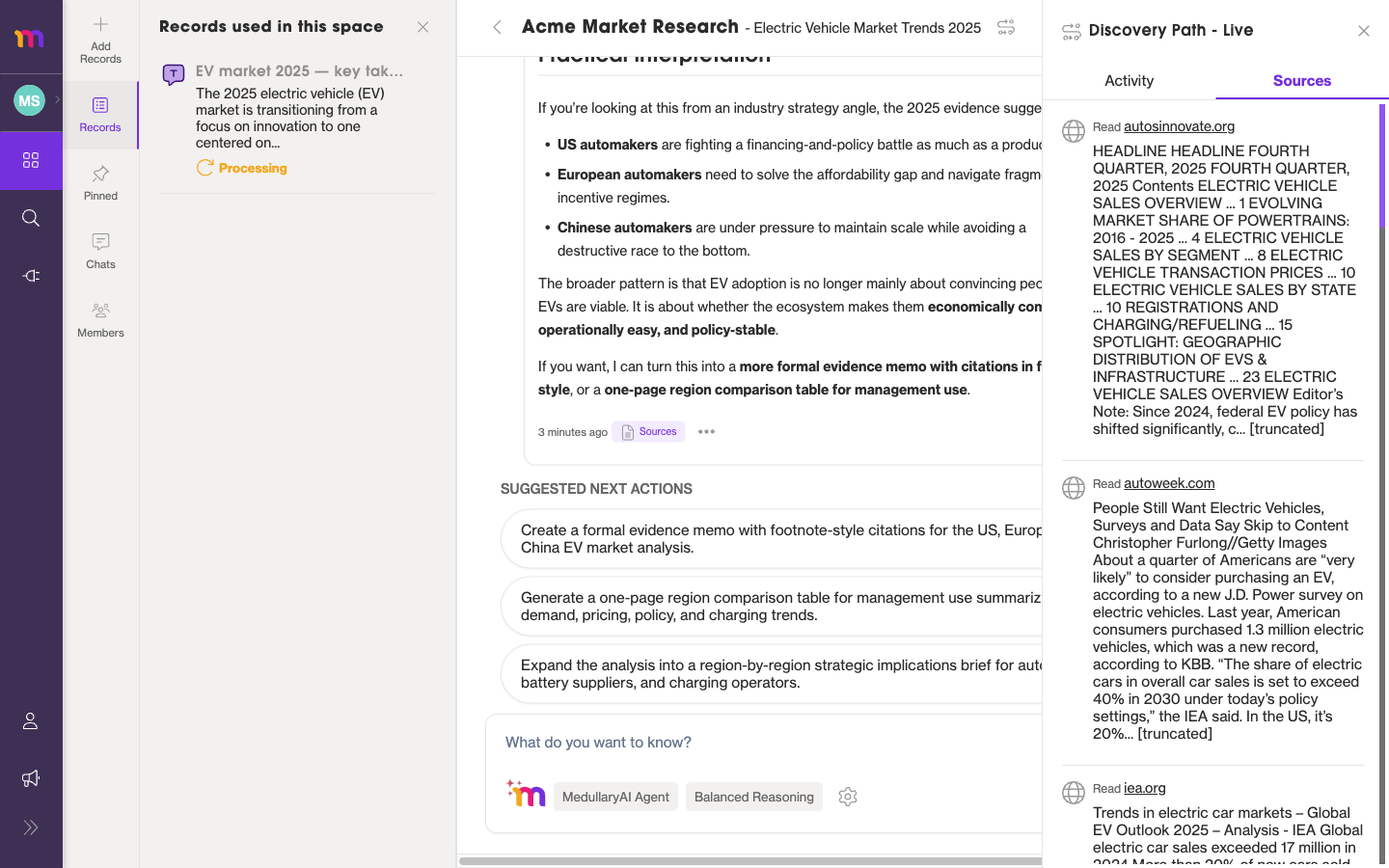
The Records drawer shows each record and its status.
For more on how the AI uses these records when you ask a question, see Chatting with the AI.
Pinning important messages
When an answer is too useful to lose in the chat history, pin it. Open the message actions menu on an AI answer and choose Pin.
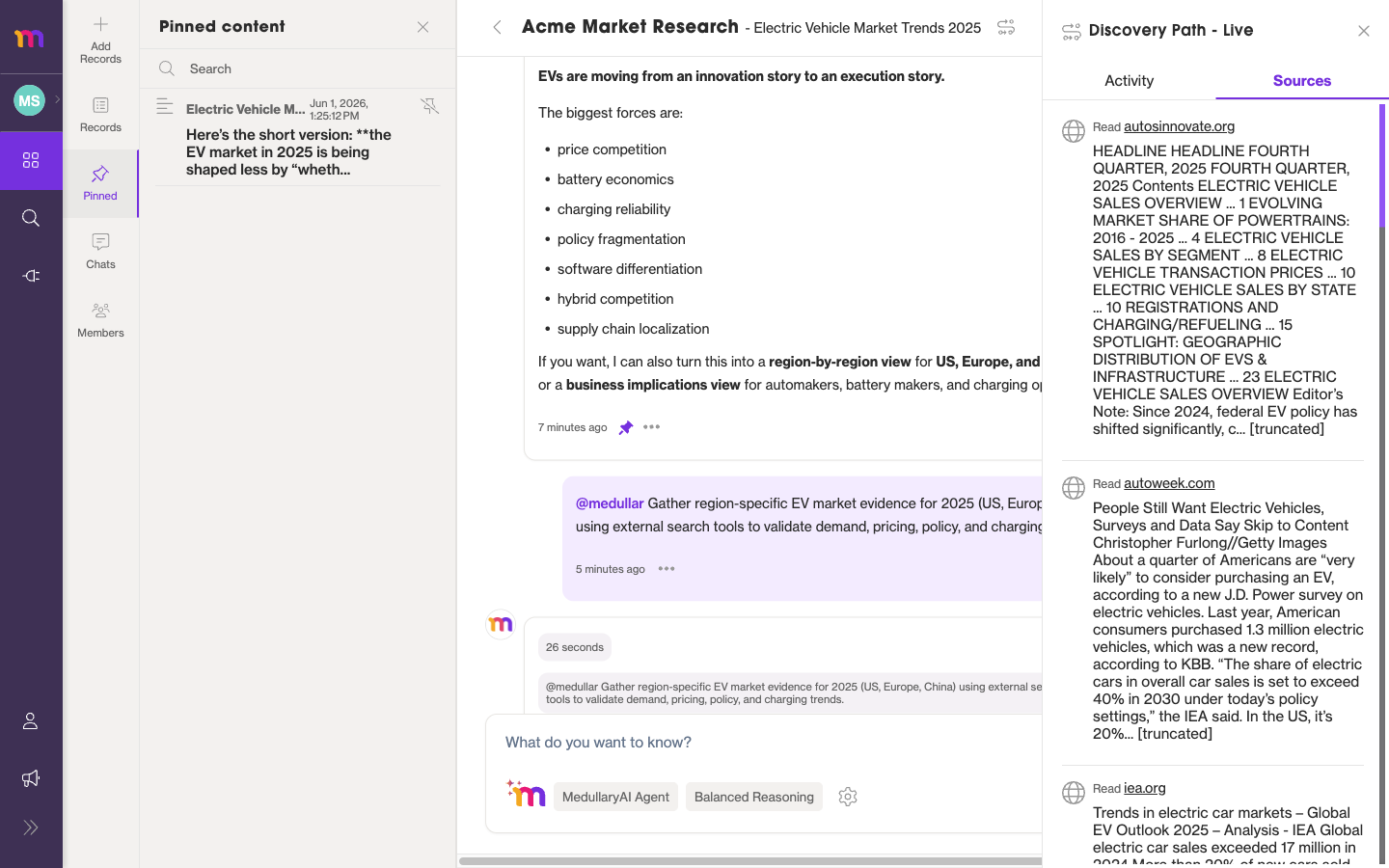
To review everything you’ve pinned, open the Pinned tool from the left toolbar. The Pinned drawer collects your key answers in one place so your team can find them fast.
Verifying answers with the Discovery Path
The Discovery Path shows you how the AI reached its answer, so you can trust and verify it. Open it from the Discovery Path toggle in the Space header, or from the Discovery Path option in a message’s actions menu.
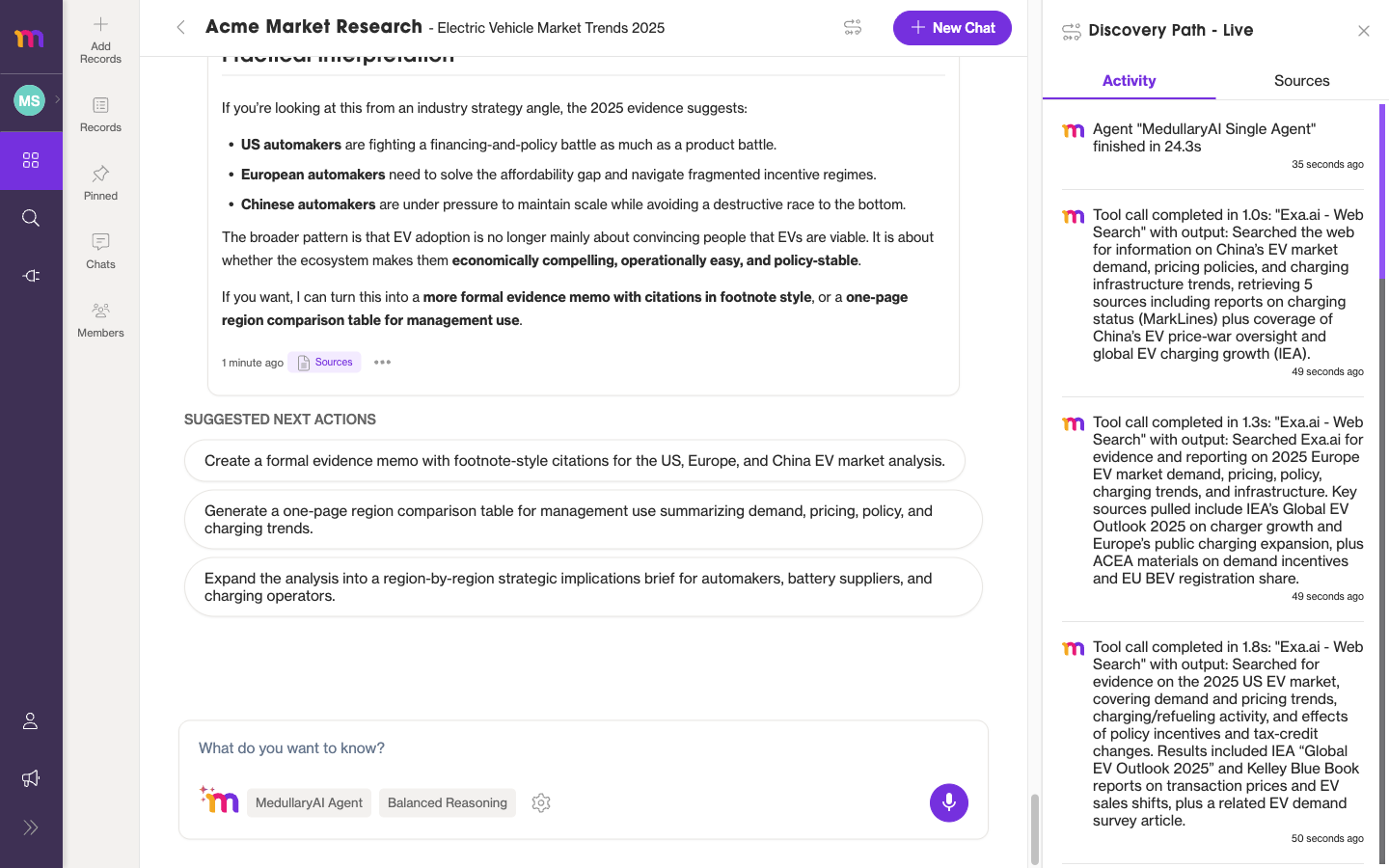
The Activity tab gives you a step-by-step trace of what the agent did, such as web searches and lookups in your Space’s knowledge.
Activity vs Sources
The Discovery Path has two tabs that answer two different questions:
- Activity — what the agent did: its step-by-step reasoning trace.
- Sources — what the agent read: the external sources behind the answer, each with a “Read <site>” link and a short snippet.
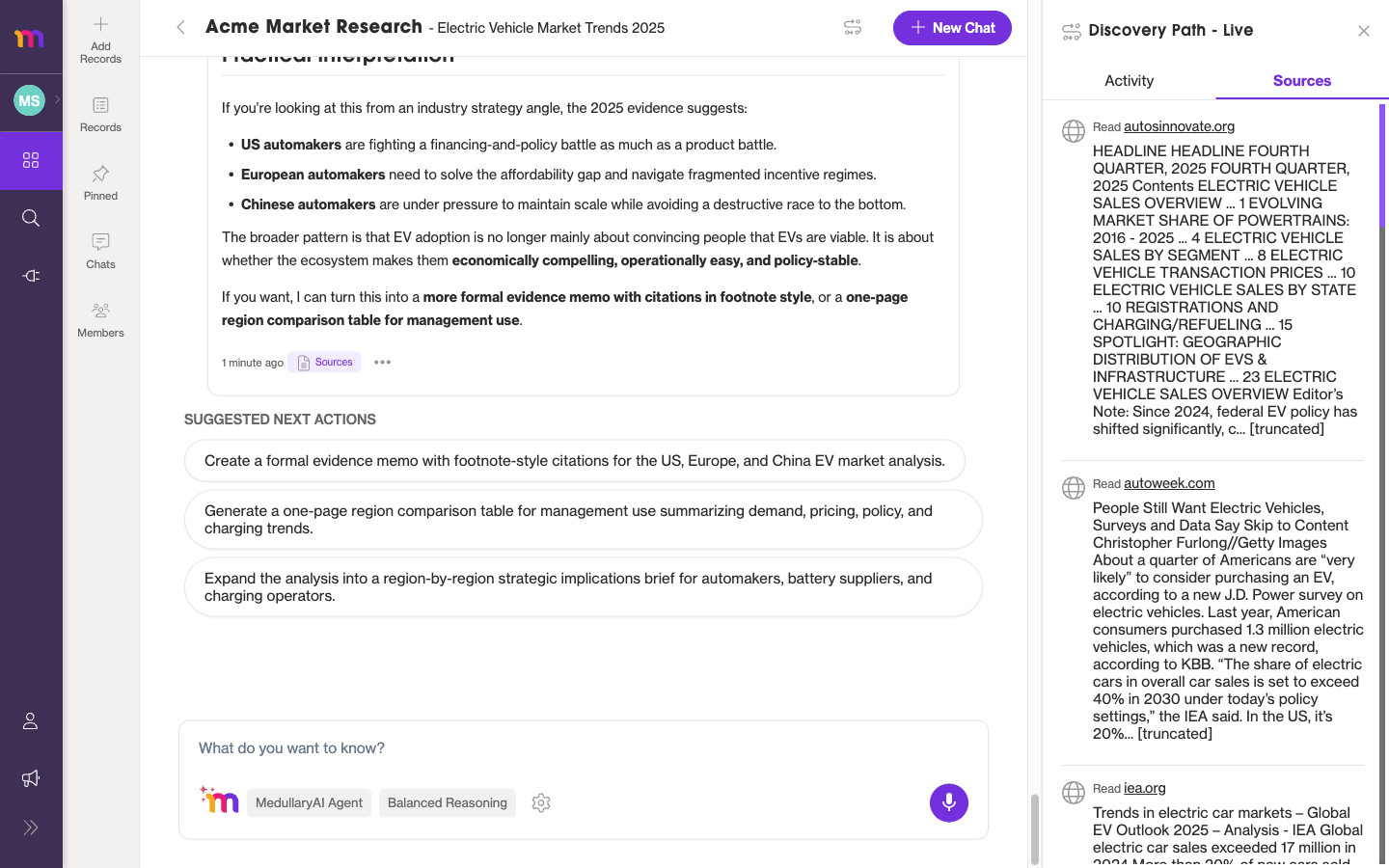
Use the Sources tab to check an answer against its references, then follow each link to read the original. To keep results from your wider Universal Search for later, you can also save and export them.