Chatting with the Medullar AI
Every Space comes with a built-in AI assistant that answers your questions over your connected data. This page shows you how to start a chat, pick the right agent, tune how deeply it reasons, and follow up on its answers.
Starting a chat
When you open a Space, the chat is right there waiting for you.
- Open a Space from the Spaces list (for example, your “Acme Market Research” Space).
- Click into the “What do you want to know?” box at the bottom.
- Type your question and send it. The Medullar AI reads your Space’s knowledge and connected apps, then answers.
To start over with a clean conversation, use New Chat in the Space header.
 The chat input toolbar, with the agent selector, settings, and send controls.
Choosing an AI agent
Different questions call for different strengths. Open “Choose an agent to interact with” to pick the agent that fits your task:
- MedullaryAI Agent — general-purpose; answers questions across your workspace.
- MedullaryAI Agent (xAI Grok) — fast reasoning, concise answers.
- MedullaryAI Agent (Claude) — enhanced reasoning, accurate answers.
- MedullaryAI Researcher — deep research; synthesizes sources into cited summaries.
- MedullaryAI Fact-Check — verifies claims against reliable sources and flags uncertainty.
- MedullaryAI Search Agent — searches all your connected apps with natural language.
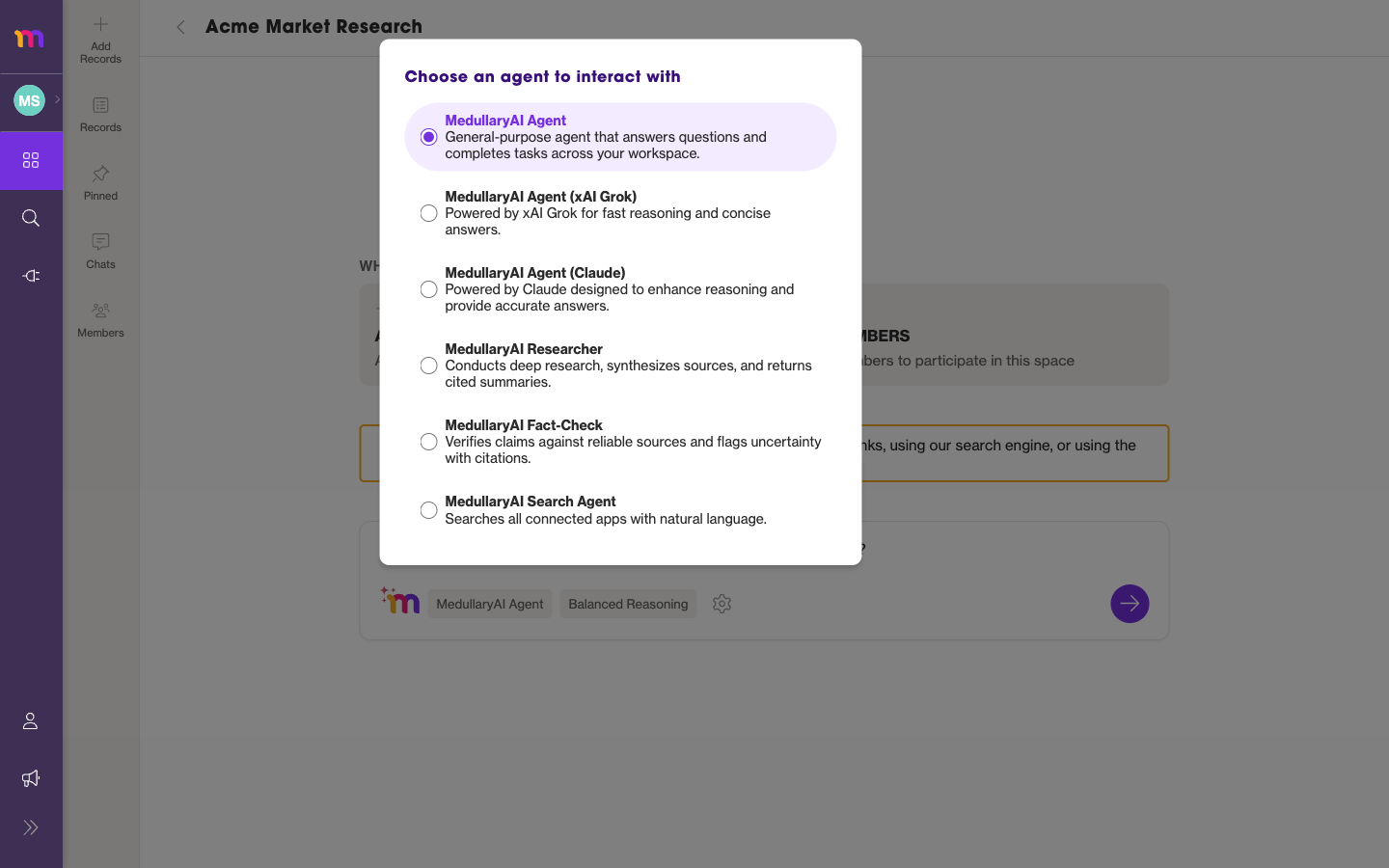
Beyond these built-in assistants, your workspace can build its own custom agents with tailored instructions, tools, and knowledge — they appear in this same selector. See AI Agents.
Setting the reasoning effort
You can tell the AI how hard to think before it answers. More effort means a more thorough response; less effort means a faster one. Choose from:
- Quick
- Concise
- Balanced (the default)
- Deep
- in-depth
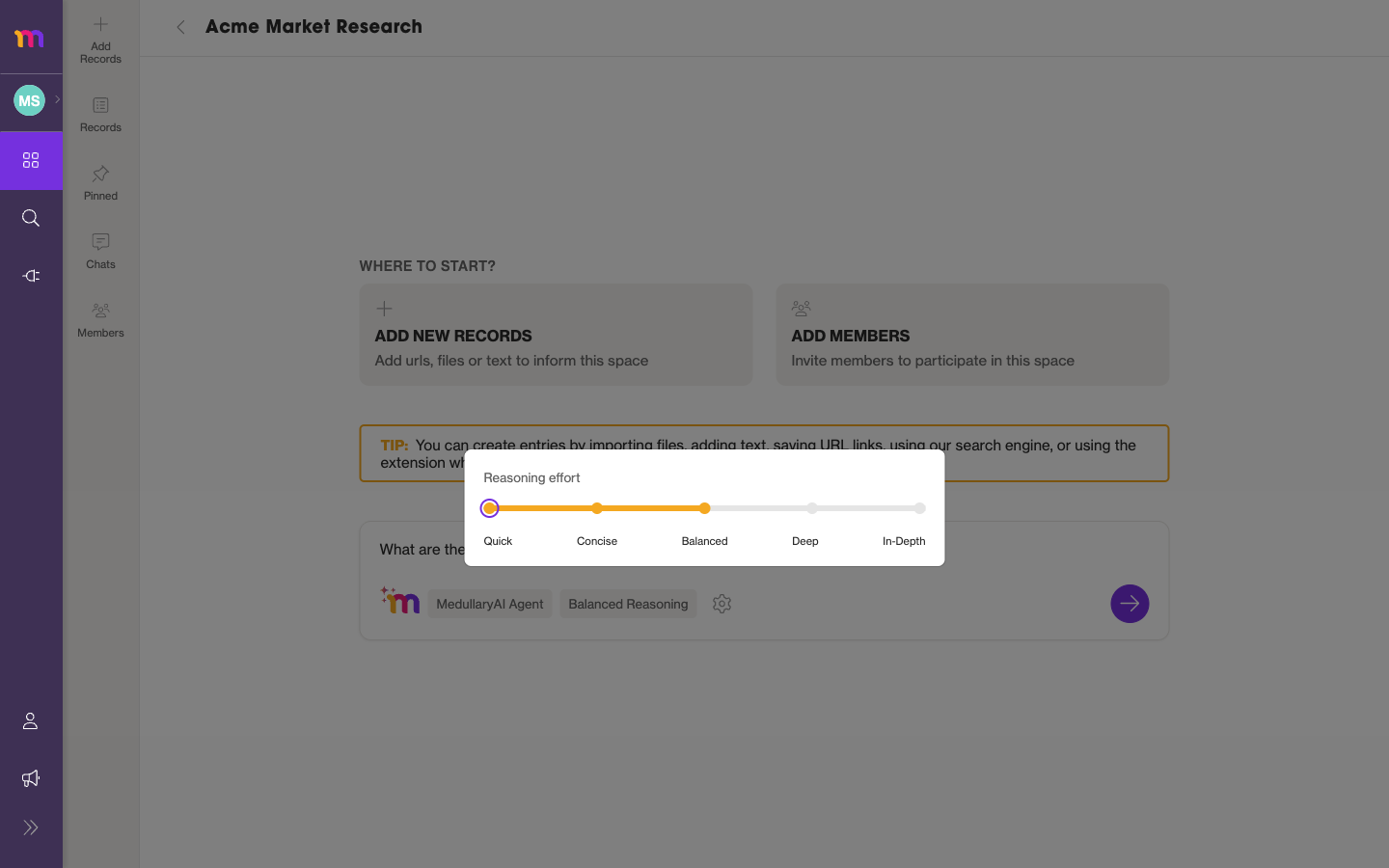
Start with Balanced for everyday questions, and switch to Deep or in-depth when you need a more careful answer over a lot of material.
Asking about your connected data
The Medullar AI answers using the knowledge in your Space and the apps you’ve connected. The more relevant material a Space holds, the better its answers.
- Add files, links, or text to a Space so the AI can reason over them — see Records, pins, and the Discovery Path.
- Connect more apps to widen what the AI can draw on — see Connecting Your Apps.
Want to see how an answer was built? Open the Discovery Path to trace the sources and reasoning behind any response. Read more in Records, pins, and the Discovery Path.
Following up and suggested actions
The chat keeps context, so you can keep the conversation going — ask a follow-up and the AI builds on what came before.
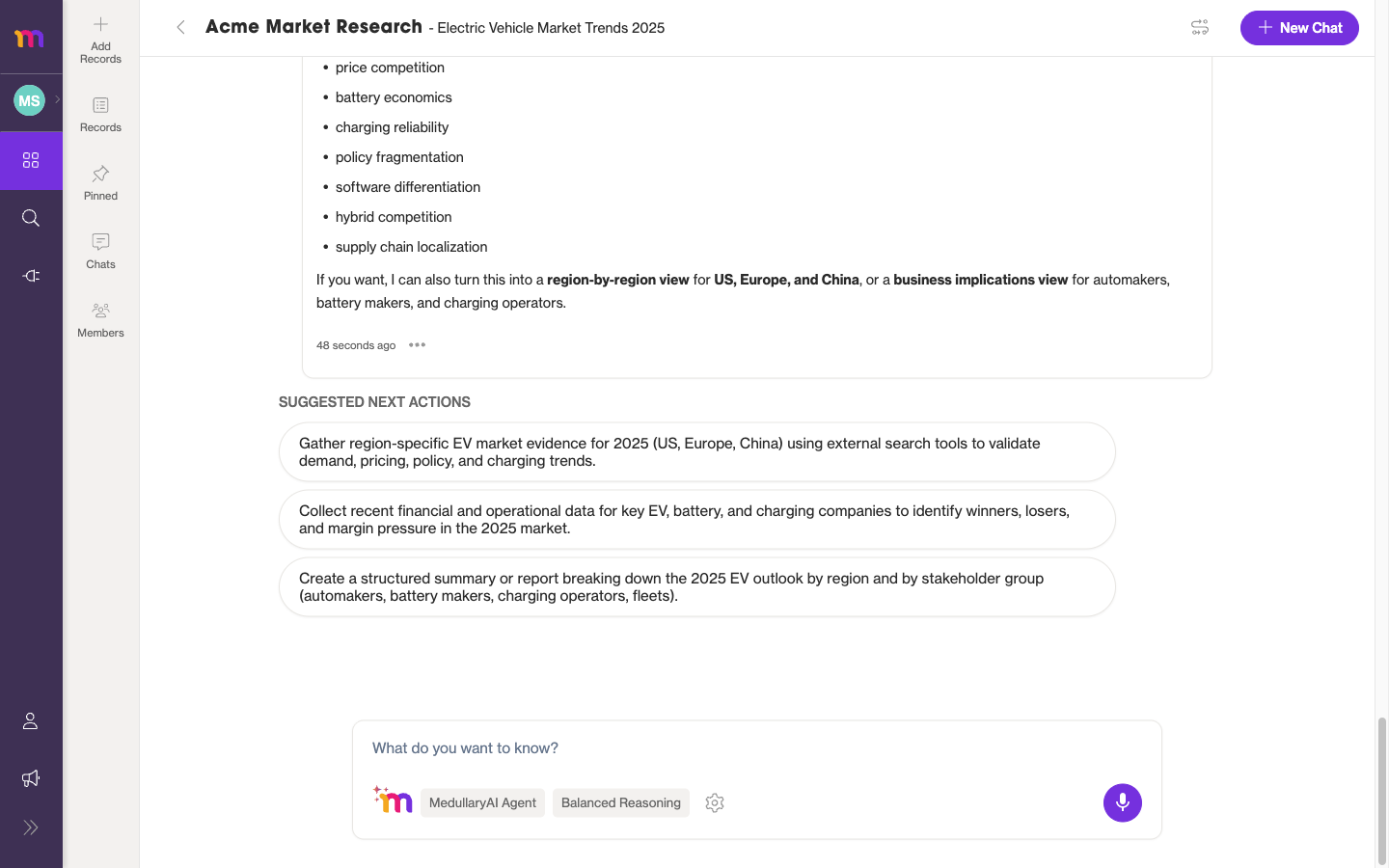
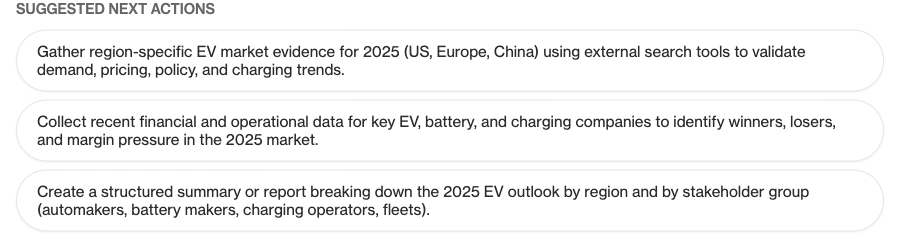
After an answer, suggested next actions appear as one-click follow-ups, so you can dig deeper without typing a new prompt.
Each AI answer also has a menu with handy actions:
- Add response to records — save the answer into your Space’s knowledge.
- Copy / Copy With Format — grab the text plain or formatted.
- Pin — keep an important answer in the Pinned drawer.
- Discovery Path — see the sources and reasoning behind the answer.
- Read Aloud — have the answer read out to you.
Voice input and mentions
You don’t have to type everything:
- Voice input — click the microphone and speak your question.
@mentionteammates — bring a teammate into the conversation by mentioning them.
The Space’s AI assistant appears as @medullar alongside the people in your Space.
Chat settings and the agent toggle
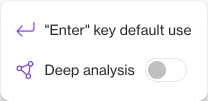
Open the chat settings (the gear icon) to fine-tune how the chat behaves:
- “Enter” key default use — choose whether pressing Enter sends your message or adds a new line.
- Deep analysis — turn on a more thorough analysis of your question.
You can also toggle the agent on or off directly from the chat input when you want to type without sending a request to the AI.
Managing chat threads
Your Space keeps your conversations so you can return to them later:
- Open the Chats drawer from the Space’s left toolbar to see your threads.
- Select a thread to pick up where you left off.
- Start a fresh conversation any time with New Chat in the Space header.